Installing
Getting started with BookWellNow is simple. Follow this guide to prepare your environment and successfully install and activate the booking engine on your WordPress website.
System Requirements
Before installing BookWellNow, please ensure your web server meets the following premium specifications to guarantee maximum performance and transaction safety:
| Requirement | Recommended Specification | Minimum Required |
|---|---|---|
| PHP Version | PHP 8.1 or higher | PHP 7.4 |
| WordPress Version | WordPress 6.2 or higher | WordPress 5.3 |
| Database Engine | MySQL 5.7+ or MariaDB 10.3+ | MySQL 5.6 |
| Memory Limit | 256M or higher | 128M |
Step 1: Download BookWellNow
Choose the version that best fits your needs before installing BookWellNow.
Option A: Download the Free Version (WordPress.org)
The free version is available directly from the official WordPress Plugin Directory.
- Visit the BookWellNow plugin page on WordPress.org.
- Click the Download button.
- Save the
bookwellnow-appointment-booking.zipfile to your computer.
The free version includes core appointment booking features and is a great way to get started.
Option B: Download the Pro Version
If you have purchased BookWellNow Pro, you can download the latest version from your BookWellNow account.
- Log in to your BookWellNow Account Dashboard.
- Open the Downloads section.
- Download the latest
bookwellnow-appointment-booking.zippackage. - Save the ZIP file to your local computer.
Once the ZIP file has been downloaded, continue to Step 2: Upload the Plugin to WordPress.
Step 2: Upload to your WordPress Admin
Log in to your WordPress administration dashboard, and follow these quick steps:
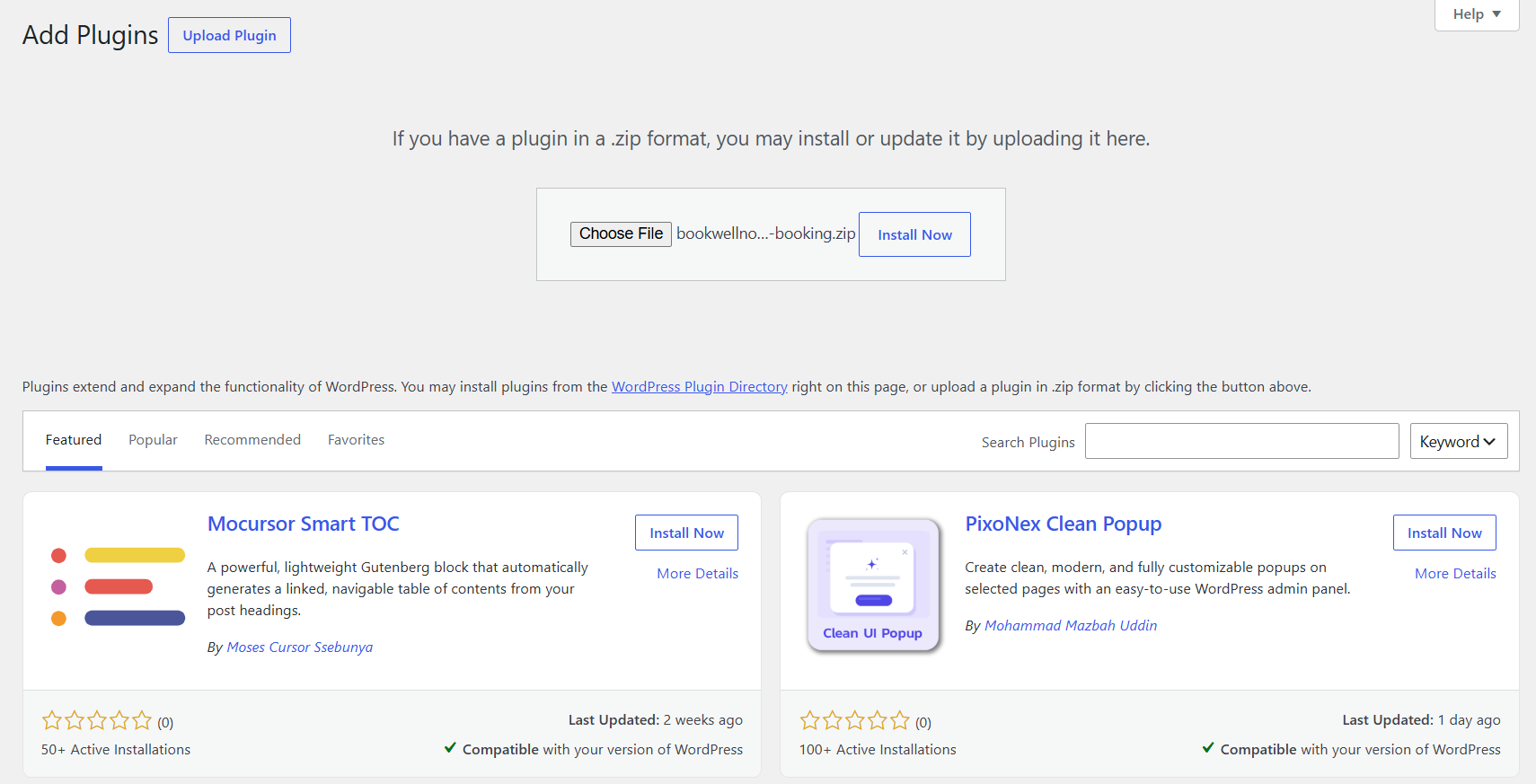
- Navigate to Plugins → Add New Plugin.
- Click the Upload Plugin button at the very top of the page.
- Click Choose File and select the
bookwellnow-appointment-booking.zippackage you downloaded in Step 1. - Click Install Now to begin the secure server extraction.
Step 3: Activate BookWellNow
After WordPress successfully unpacks and installs the plugin files, click the primary Activate Plugin button to initialize the database tables and enable the admin menu panel.
✓ Plugin Activated Successfully! You will immediately see the “BookWellNow” entry in your sidebar menu, ready for first-time configuration.