Manage Services
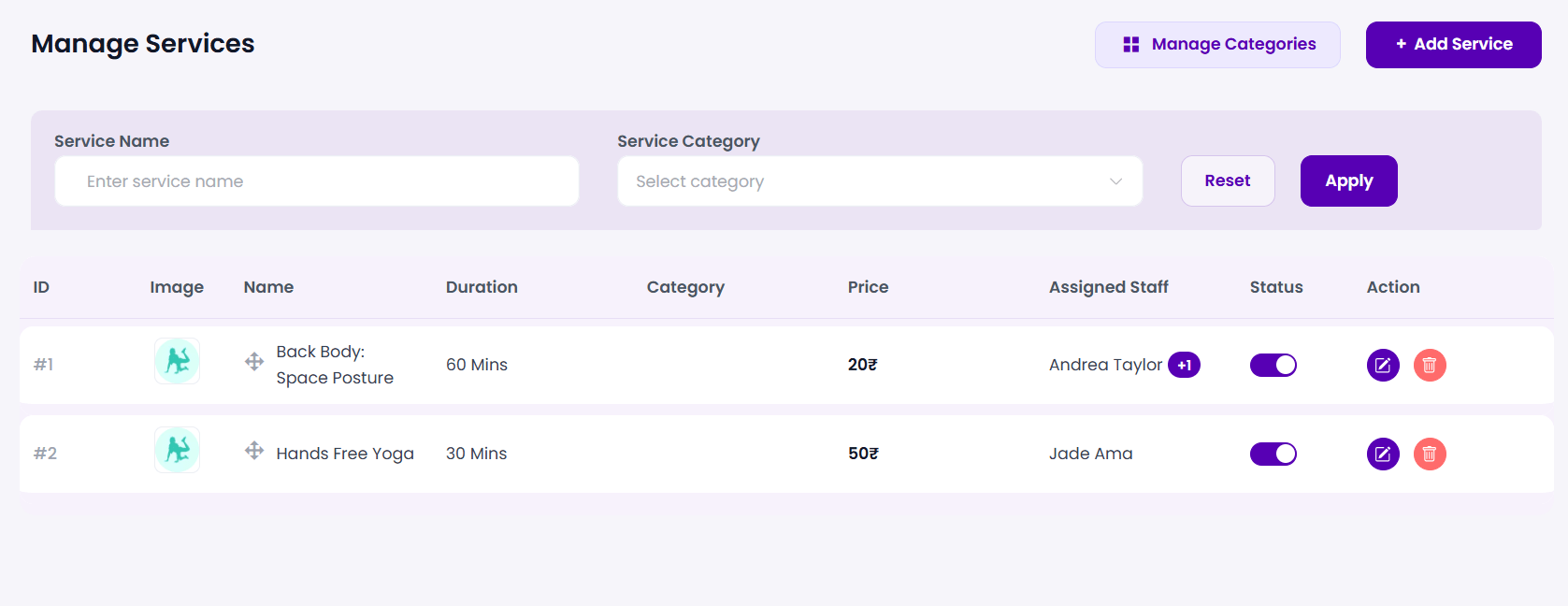
The Manage Services screen provides a high-end visual panel to view, filter, and organize the services offered by your business. It features inline status toggles, detailed durational logs, and an interactive Drag-and-Drop ordering system to organize how services display on your frontend booking forms.
Step 1: Access the Services Panel
Log into your WordPress admin dashboard and navigate to:
BookWellNow → ServicesThe main screen presents a clean, minimalist table listing all configured services, their category relationships, price points, and active statuses.
Step 2: Search and Filter the Catalog
If you manage a large booking catalog, you can quickly locate specific services using the search filters at the top of the table:
- Service Name: Enter keywords to find specific services (e.g. “Hair Cut”).
- Service Category: Filter records by a specific category dropdown (e.g. “Massage”).
Click the primary Apply button to filter the table, or click Reset to clear the active parameters.
Step 3: Drag-and-Drop to Set Display Ordering
BookWellNow allows you to rearrange the order in which services appear to customers on your public website. You do not need to edit numeric menu weights manually:
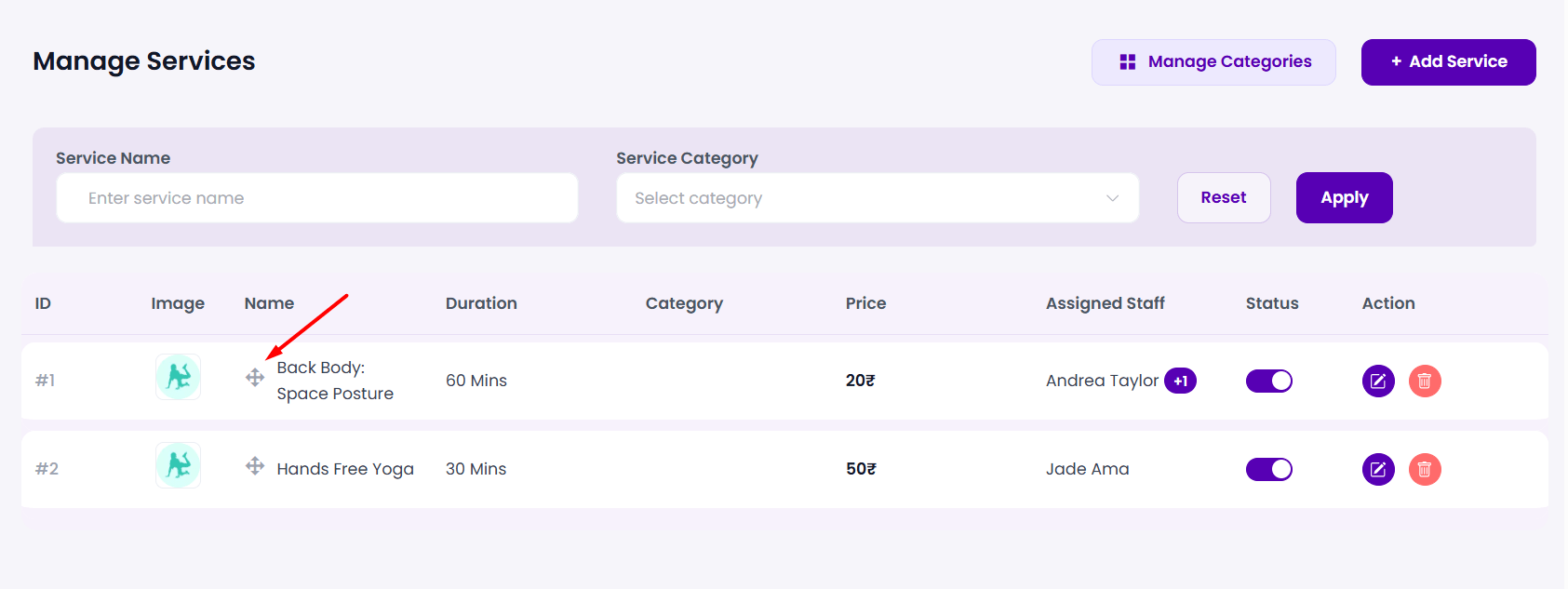
- Locate the drag handle crosshair icon (
✛) directly next to the service thumbnail image under the “Name” column. - Click and hold the crosshair handle of the service row you want to move.
- Drag the row up or down to your desired position inside the table list.
- Release the mouse button. BookWellNow automatically saves the new display sequence, updating your booking forms instantly!
💡 Scannability Tip: We recommend placing your most popular services at the very top of the list so clients see them first upon opening the booking widget.
Step 4: Inline Status & Actions
Each row in the table provides inline administrative controls to keep your backend swift and interactive:
- Status Toggle: Tap the inline slider toggle switch to instantly toggle a service between Active (visible at checkout) and Inactive (hidden from checkout).
- Action Buttons: Use the purple Edit icon to launch the slider edit drawer, or click the red Trash icon to delete the service record completely.