Edit Appointment
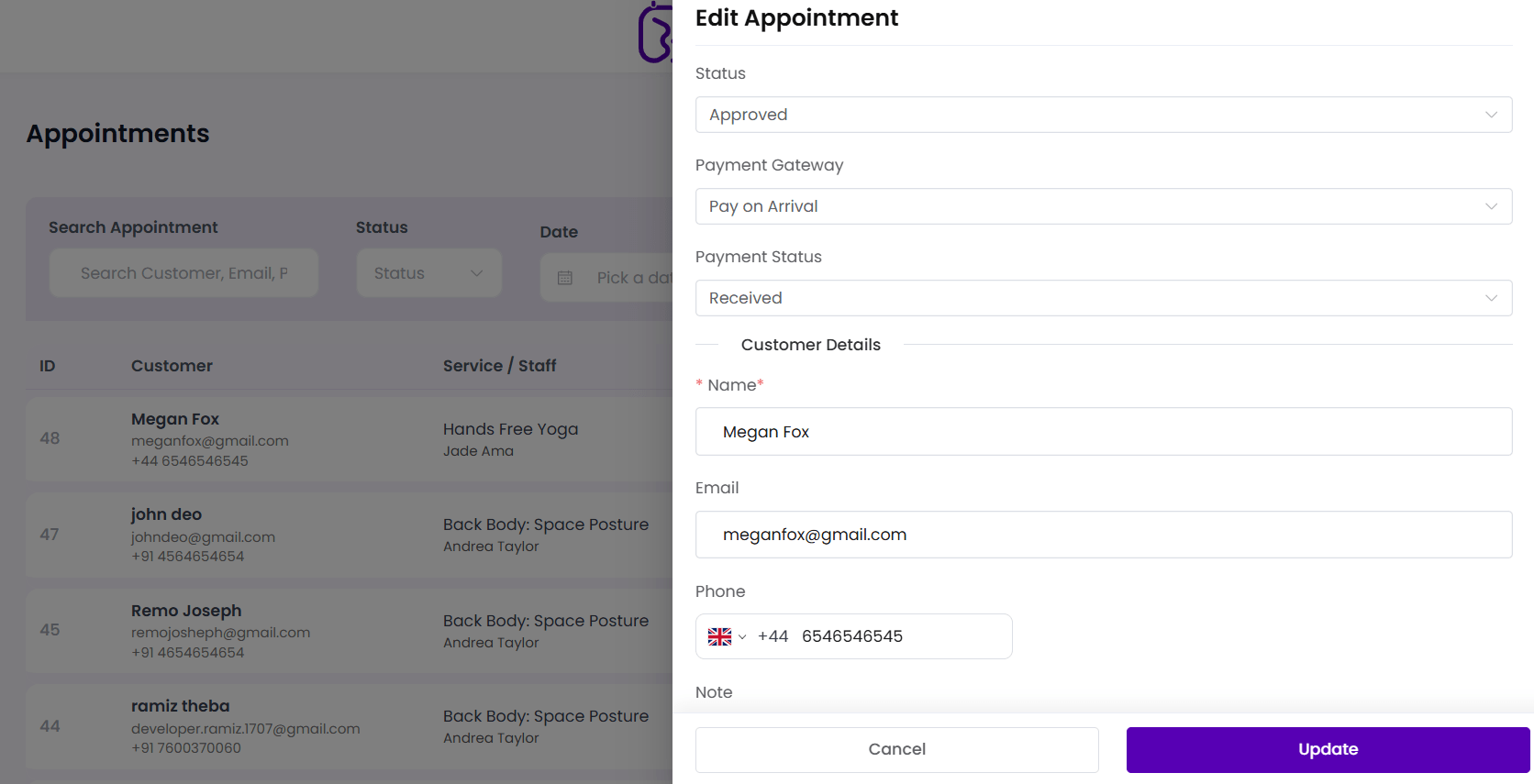
The Edit Appointment screen allows administrators to update appointment details, manage payment information, modify booking statuses, and add internal notes.
This screen helps you manage appointments efficiently without requiring customers to create a new booking.
Accessing the Edit Appointment Screen
To edit an appointment, navigate to:
BookWellNow → AppointmentsLocate the appointment you wish to update and click the Edit action.
The appointment details panel will open on the right side of the screen.
Appointment Status
The Appointment Status field allows you to control the current state of the booking.
Available statuses may include:
- Pending
- Approved
- Cancelled
Updating the appointment status helps keep booking records accurate and organized.
Payment Gateway
The Payment Gateway field displays the payment method selected during the booking process.
Examples may include:
- Pay On Arrival
- Stripe
- PayPal
- Offline Payment
This information helps administrators identify how the customer intends to pay.
Payment Status
The Payment Status field displays the current payment state for the appointment.
Available statuses may include:
- Pending
- Paid
- Failed
- Refunded
Administrators can update the payment status when necessary.
Customer Information
The Customer Information section displays details about the customer who created the booking.
This information may include:
- Customer Name
- Email Address
- Phone Number
These details help administrators contact customers regarding appointment changes or confirmations.
Appointment Information
The appointment information section displays booking details such as:
- Service Name
- Assigned Staff Member
- Appointment Date
- Appointment Time
- Duration
- Total Amount
Review this information before making any changes.
Notes
Use the Notes field to add internal comments related to the appointment.
Notes can be used to record:
- Special customer requests
- Appointment changes
- Payment information
- Internal reminders
These notes are intended for administrative use.
Updating the Appointment
After making the required changes, click:
UpdateBookWellNow will save the updated appointment information.
The appointment list will reflect the changes immediately.
Managing Appointment Changes
The Edit Appointment screen allows administrators to:
- Update appointment status
- Manage payment information
- Review customer details
- Add internal notes
- Maintain accurate booking records
Troubleshooting
Changes Not Saving
If appointment updates are not saving:
- Refresh the page
- Check user permissions
- Verify required fields are completed
Payment Status Not Updating
Ensure the selected payment status is valid before saving the appointment.
Customer Information Missing
If customer details are missing, verify that the booking was created successfully and contains customer information.