List Appointments
The Appointments screen allows you to view, search, filter, and manage all bookings created through BookWellNow Appointment Booking.
This centralized view helps administrators monitor appointment activity, customer information, payment details, and booking statuses from a single location.
Accessing Appointments
To access the Appointments screen, navigate to:
BookWellNow → AppointmentsThe Appointments page displays all booking records in a searchable and filterable table.
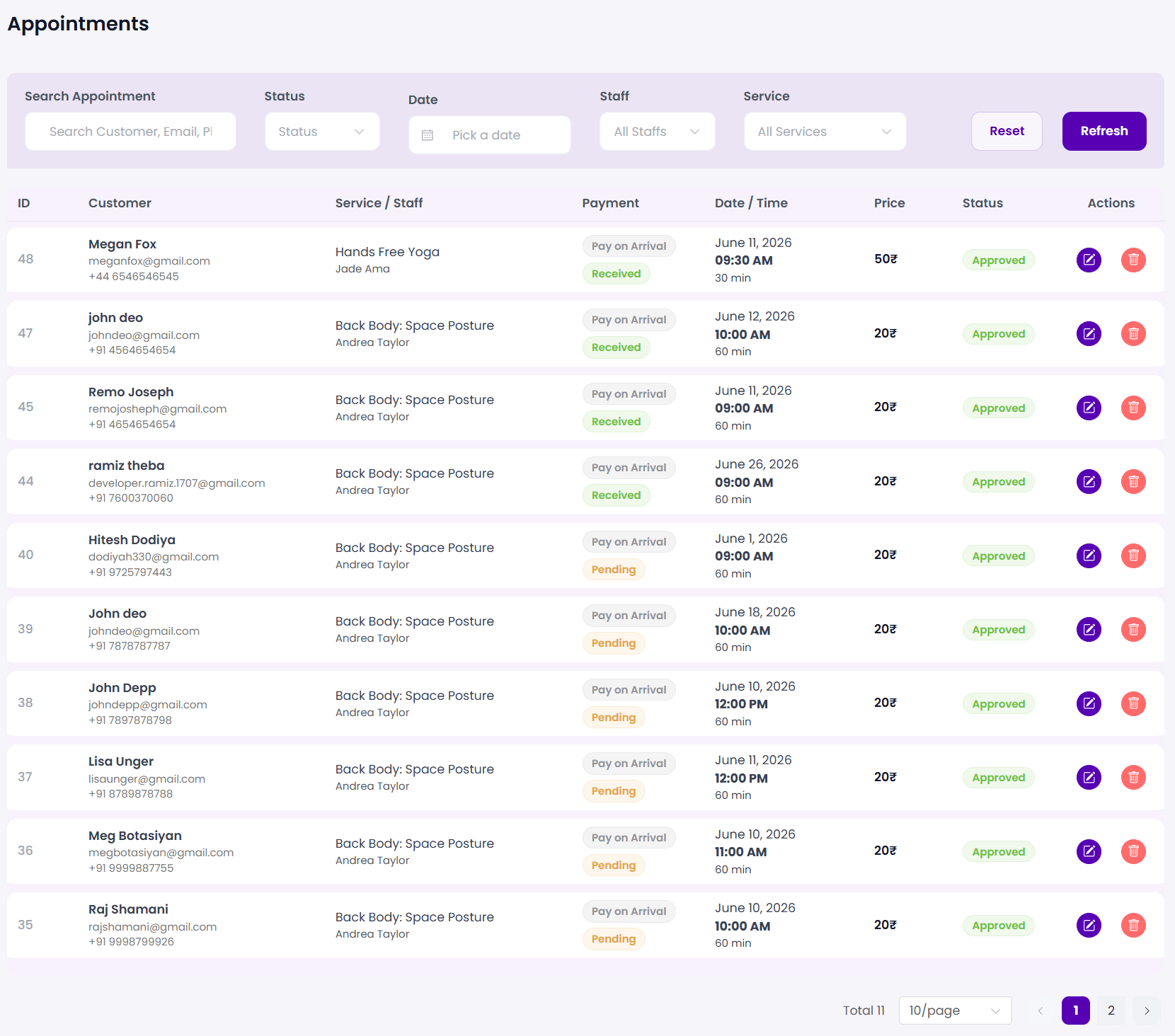
Appointments Table Overview
The appointment table displays all booking records and important appointment information.
Each appointment includes:
- Customer Information
- Service Details
- Assigned Staff Member
- Payment Information
- Appointment Date & Time
- Appointment Status
- Available Actions
Searching Appointments
Use the Search Appointment field to quickly find specific bookings.
You can search using:
- Customer Name
- Email Address
- Phone Number
The appointment list automatically updates based on your search criteria.
Filtering Appointments
BookWellNow provides multiple filters to help you quickly locate appointments.
Status Filter
Use the Status dropdown to display appointments with a specific booking status.
Available statuses may include:
- Pending
- Approved
- Cancelled
Date Filter
Use the Date filter to display appointments scheduled for a specific date.
Staff Filter
Use the Staff filter to display appointments assigned to a specific staff member.
Service Filter
Use the Service filter to display appointments for a specific service.
Refresh and Reset Filters
Refresh
Click the Refresh button to reload appointment data and apply selected filters.
Reset
Click the Reset button to clear all active filters and display all appointments.
Customer Information
The Customer column displays information about the customer who created the booking.
This information may include:
- Customer Name
- Email Address
- Phone Number
Service and Staff Information
The Service / Staff column displays the booked service and assigned staff member.
This helps administrators quickly identify who will perform the service and which appointment was booked.
Payment Information
The Payment column displays payment-related information for each appointment.
Depending on your configuration, this may include:
- Payment Method
- Payment Status
- Payment Amount
This information helps track completed and pending payments.
Appointment Date and Time
The Date / Time column displays:
- Appointment Date
- Appointment Time
- Service Duration
This information helps administrators manage daily schedules and upcoming appointments.
Appointment Status
The Status column displays the current state of the appointment.
Common appointment statuses include:
- Pending
- Approved
- Cancelled
Statuses help track appointment progress throughout the booking process.
Appointment Actions
The Actions column provides quick access to appointment management options.
Available actions may include:
- Edit Appointment
- Delete Appointment
These actions allow administrators to manage bookings directly from the appointment list.
Managing Appointments
Using the Appointments screen, administrators can:
- Search appointments
- Filter booking records
- Review customer information
- Monitor payment status
- Edit appointments
- Delete appointments
- Track appointment activity
Troubleshooting
No Appointments Displayed
If no appointments appear in the table:
- Verify appointments have been created
- Clear active filters
- Click Refresh
Search Results Not Appearing
Ensure the customer name, email address, or phone number is entered correctly.
Filters Not Returning Results
Try resetting filters and applying them again.
Private notes and bulk actions
Free supports an internal admin note on an appointment. Keep operational notes here rather than placing private information in customer-facing booking notes. Use the appointment editor and save the note; verify it with an authorized admin account.
Bulk tools apply status changes or deletion to selected appointments. They do not create multiple bookings. Review the selection before deletion and test whether status changes trigger the notification rules you have enabled.