Booking Form Labels
The Booking Form Labels tab allows you to translate, localize, and customize every text string and button label displayed on the front-end booking wizard without modifying code.
Step 1: Open the Labels Editor
Navigate to: BookWellNow → Settings and select the Booking Form Labels tab.
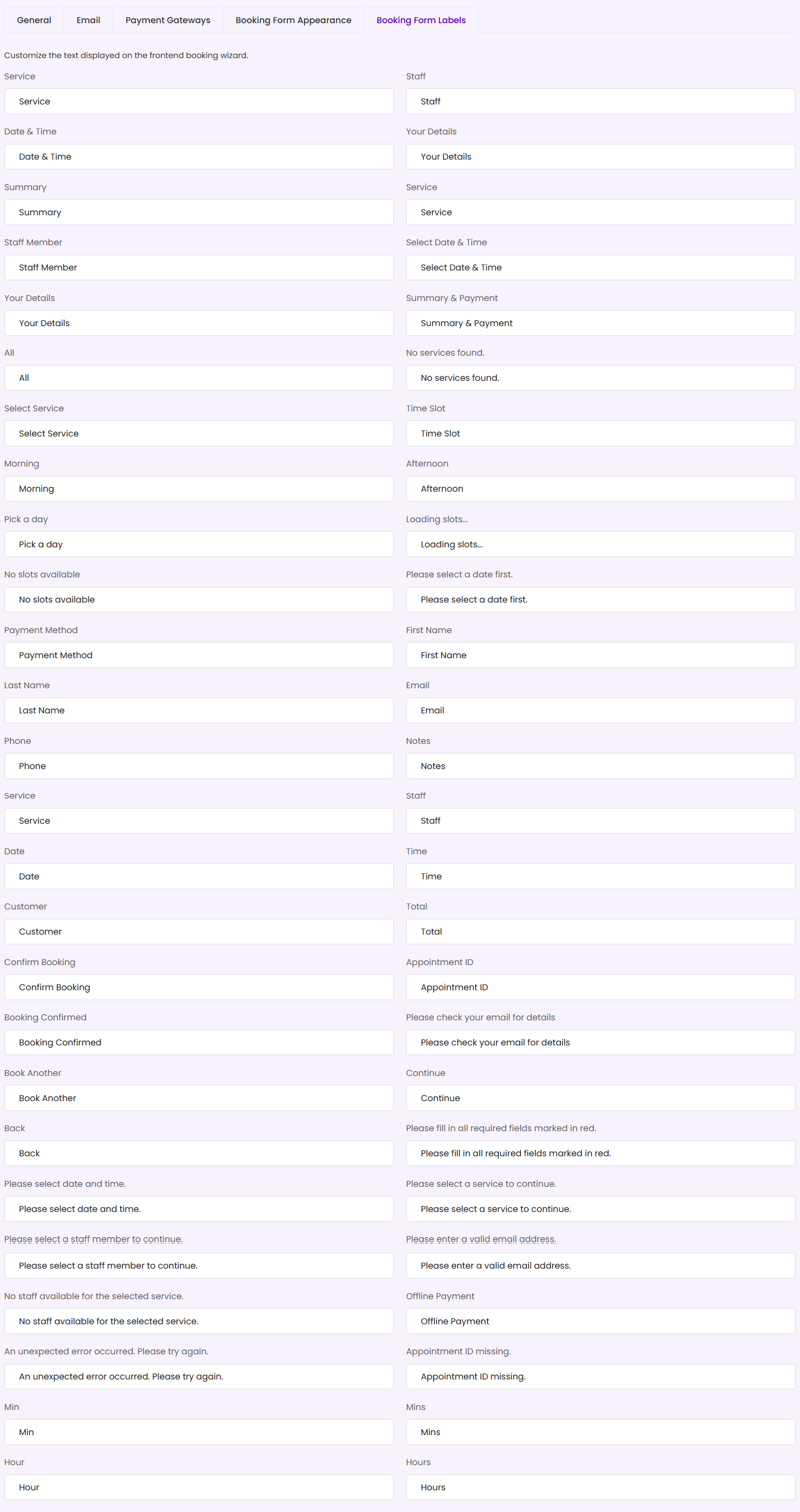
Step 2: Translate or Customize Labels
The interface displays side-by-side input fields for every text string used in the checkout process. Replace default values to localize or adjust terminology to fit your business:
- Core Step Labels: Customize main progress milestones (e.g., change “Staff” to “Specialists” or “Therapists”).
- Interface Actions: Rename action buttons (e.g., change “Confirm Booking” to “Book Appointment Now”).
- Form Messages & Errors: Customize verification errors and notices (e.g. “Please fill in all required fields marked in red.”).
Step 3: Save Changes
Click the purple Save Settings button in the top-right corner to apply the updated labels instantly across all active booking widgets.
ℹ Label Sync: Label overrides update strings dynamically without changing the plugin’s core files, ensuring your custom translations remain safe during theme and plugin updates!
Translate interface strings
Booking labels can be customized here. The Free plugin also uses WordPress gettext and its text domain, bookwellnow-appointment-booking, for translatable interface strings. Use WordPress language tools or a compatible translation workflow for strings that are not booking label settings.
Changing a label does not translate service names, staff names or your site’s content automatically. Check both the admin and booking frontend in the target language.