Service Extras
Service Extras (or Add-ons) are optional services or goods that clients can purchase alongside their primary booking. Offering service extras is a highly effective way to increase your average transaction value and provide customized service upgrades (e.g. adding a “Premium Pomade Finish” or a “Beard Oil Treatment” to a haircut service).
Step 1: Access the Service Extras Panel
Log in to your WordPress dashboard and navigate to:
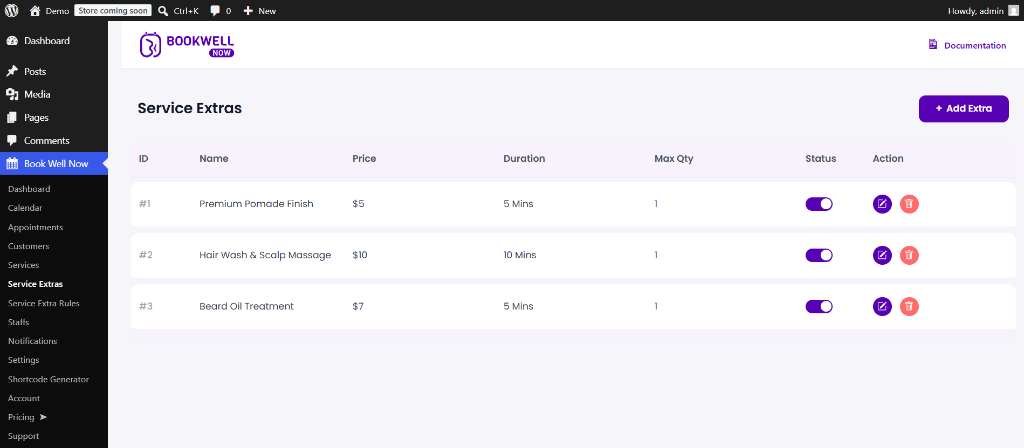
BookWellNow → Service ExtrasThis panel displays a structured overview of all configured extras, including their price points, custom durations, maximum quantities, status toggles, and edit/delete actions.
Step 2: Add a New Service Extra
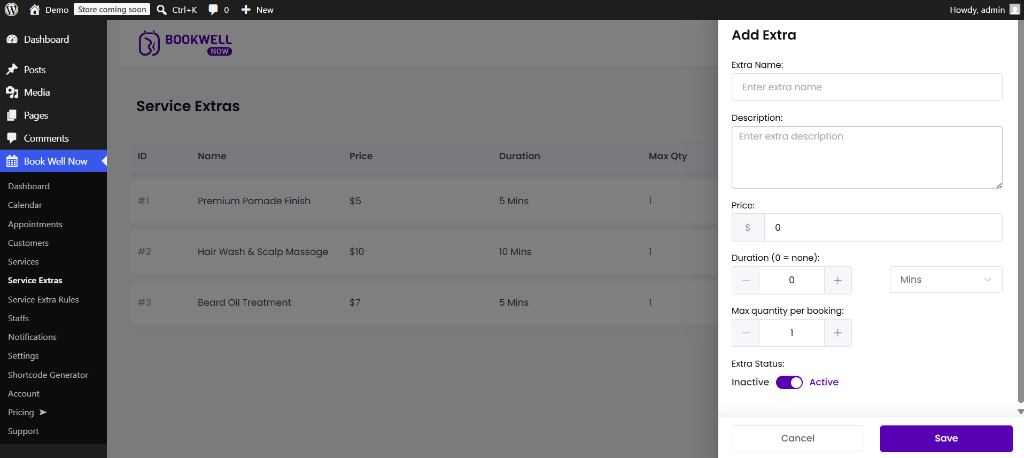
To register a new add-on service, click the primary purple + Add Extra button in the top-right corner. A sliding drawer panel will open from the right side of the screen:
- Extra Name: Enter the customer-facing name of the add-on (e.g. “Hair Wash & Scalp Massage”).
- Description: Provide a brief summary of what the extra includes to inform clients during checkout.
- Price: Input the additional cost of the extra. The default currency symbol ($) is enqueued automatically.
- Duration (0 = none): Set the extra duration required for this add-on using the increment buttons (
-and+) or typing it directly (e.g.10Mins). Toggle between Mins and Hours using the select dropdown. - Max quantity per booking: Define how many units of this extra a customer can select in a single booking transaction (default is
1). - Extra Status: Toggle between Inactive and Active. Active extras are immediately available for customers to choose when booking.
💡 Business Strategy Tip: Offer low-cost, high-margin extras (like specialty finishes, hair treatments, or travel sizes) to maximize checkout revenues.
Step 3: Edit or Delete Service Extras
Manage your extras catalog easily from the list table using the action column:
- Status Toggle: Click the inline slider to instantly switch a service extra’s availability status.
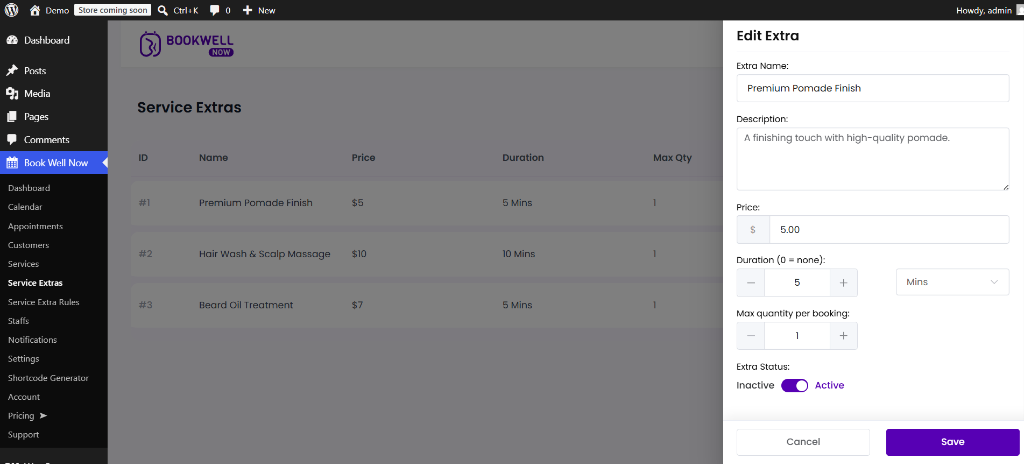
- Edit Extra: Click the purple Edit button (pencil icon) to launch the sliding edit drawer, modify your settings, and save.
- Delete Extra: Click the red Trash button to delete the extra permanently from your plugin catalog.