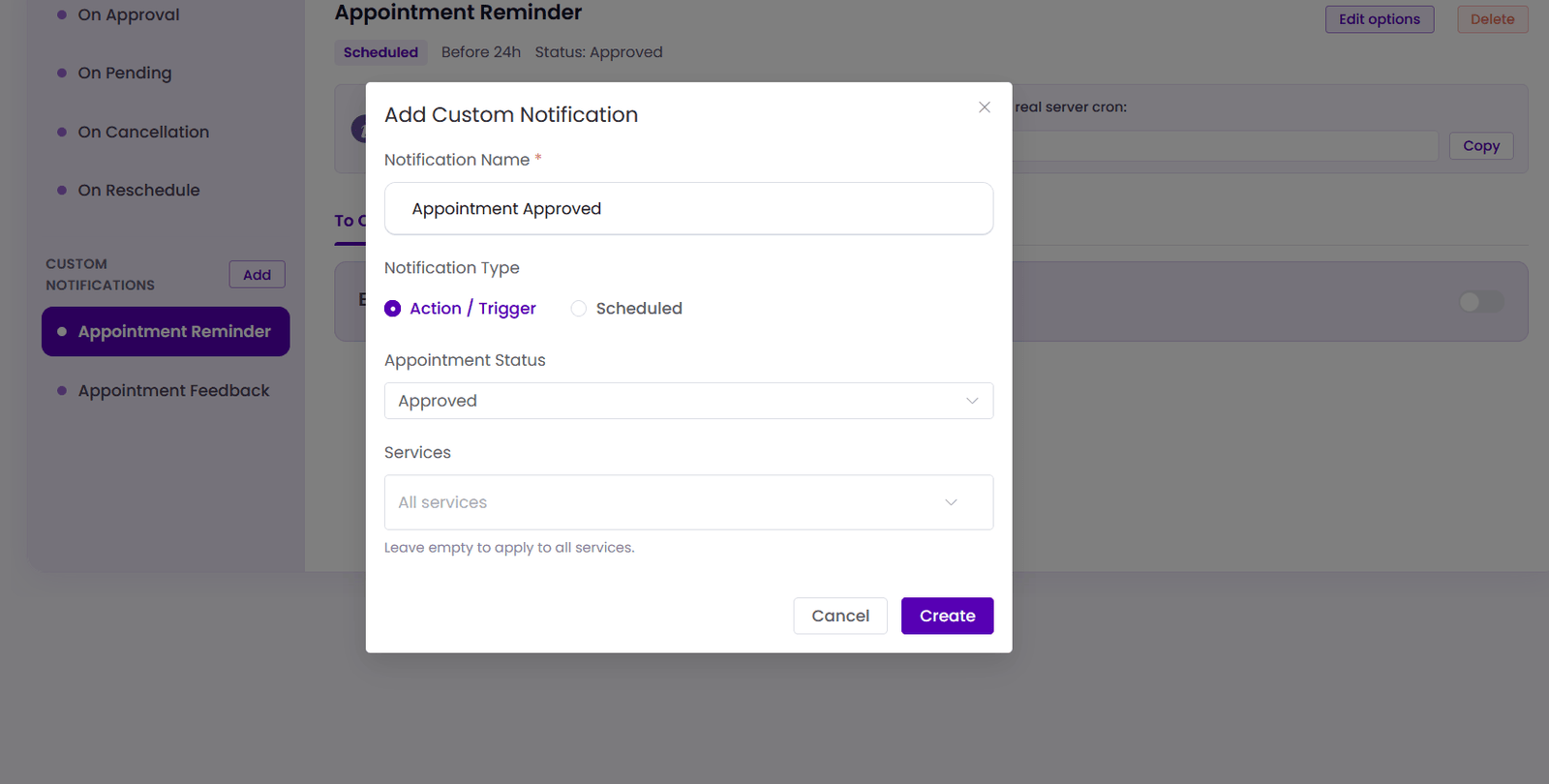
Add Custom Email Notification
The Add Custom Notification feature allows you to create custom email notifications that are automatically sent when specific appointment events occur. You can define the notification name, choose the trigger type, set the appointment status, and optionally limit the notification to selected services.
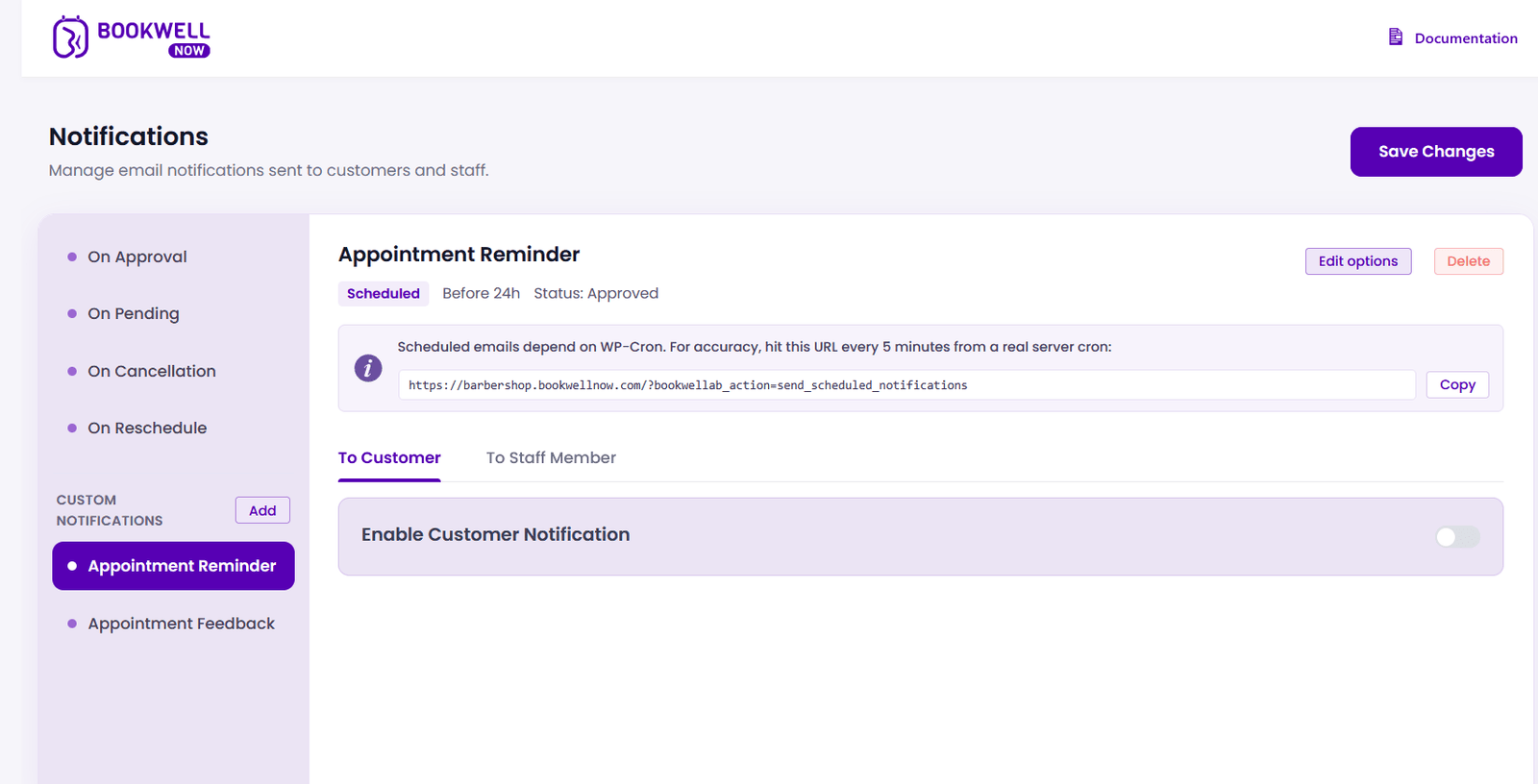
Steps to Create a Custom Notification
- Navigate to Notifications → Add Custom Notification.
- Enter a Notification Name to identify the notification.
- Select the Notification Type:
- Action / Trigger – Sends the email immediately when the selected appointment status is reached.
- Scheduled – Sends the email at a predefined time before or after the appointment.
- Choose the Appointment Status (e.g., Approved, Pending, Cancelled, Completed).
- Select one or more Services, or leave the field empty to apply the notification to all services.
- Click Create to save the notification.
Add Custom Notification Popup
After clicking Create, configure the email content and recipients before enabling the notification.