Shortcodes
BookWellNow makes it extremely easy to publish your booking calendars anywhere on your WordPress site. By using our highly customizable [bookwell_booking] shortcode, you can insert a sleek booking form inside pages, posts, widget areas, or custom page builders like Elementor.
Step 1: The Shortcode Generator Card
To create custom shortcodes visually, navigate to BookWellNow → Shortcode Generator. This premium tool lets you select options from simple dropdown menus and automatically generates copy-pasteable shortcode strings.
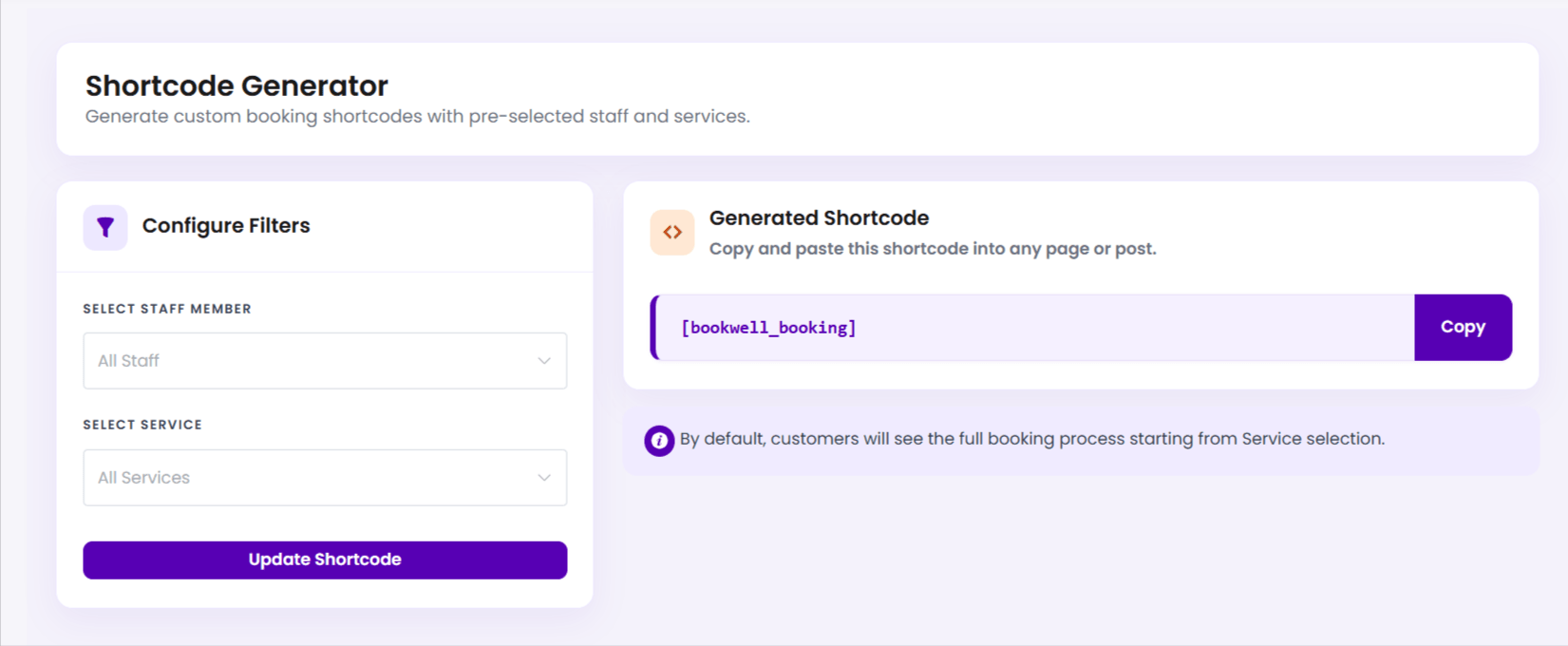
Step 2: Customize Filter Parameters
By default, the shortcode displays the entire booking tree, asking customers to select a Category, Service, and Staff Member. However, you can use parameters to pre-define filters and skip specific steps:
| Parameter | Purpose | Example Usage |
|---|---|---|
staff_id |
Pre-selects a specific staff member and skips staff choice. | [bookwell_booking staff_id="3"] |
service_id |
Pre-selects a specific service and skips service catalog. | [bookwell_booking service_id="12"] |
💡 Pro Tip: If you specify BOTH a staff_id and a service_id, the customer will bypass the catalog selection entirely and proceed straight to the available Date and Time picker!
Step 3: Embed in Gutenberg Blocks
Open the page where you want to embed the booking form, click the “+” icon, insert a native Shortcode block, and paste the code.
[bookwell_booking]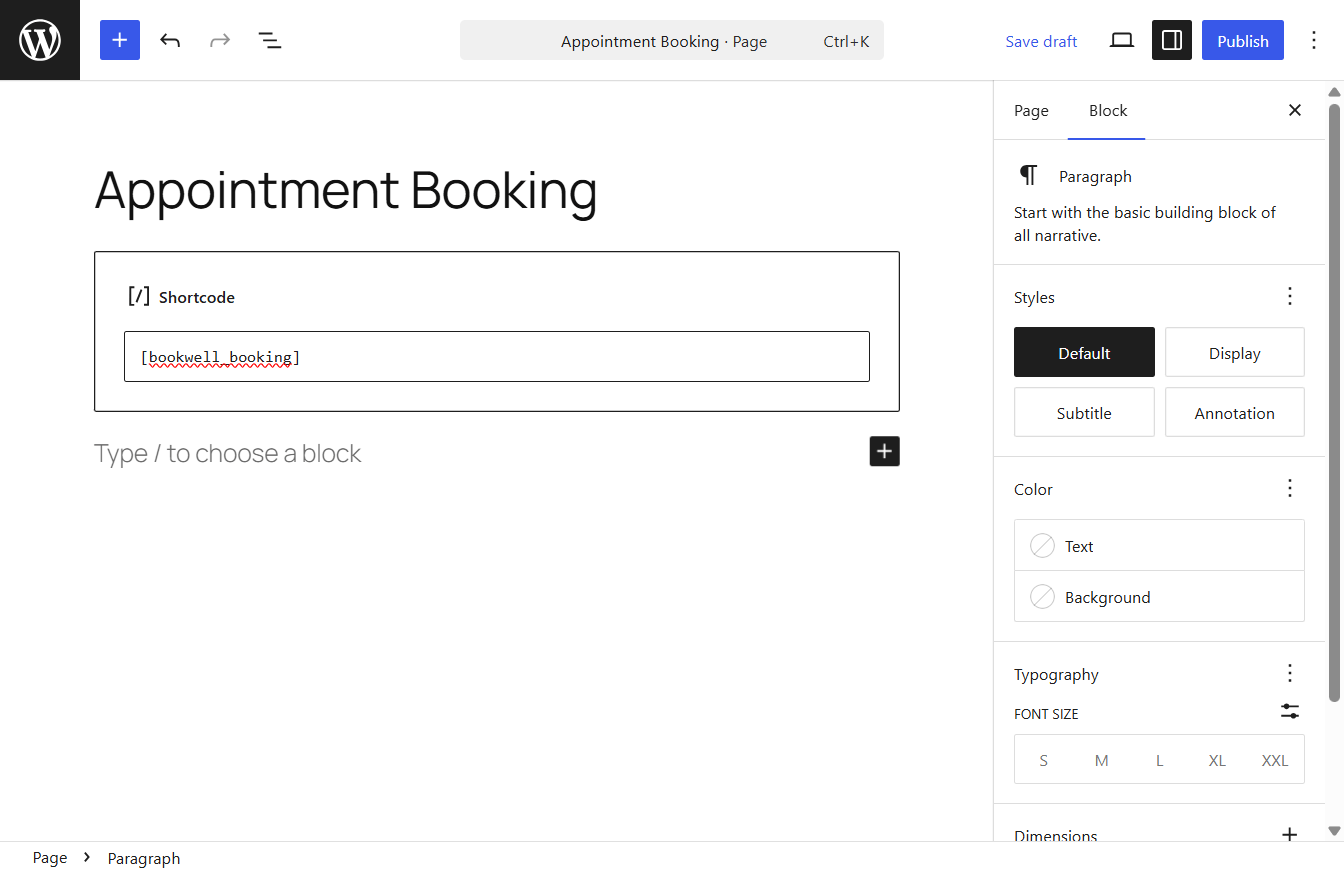
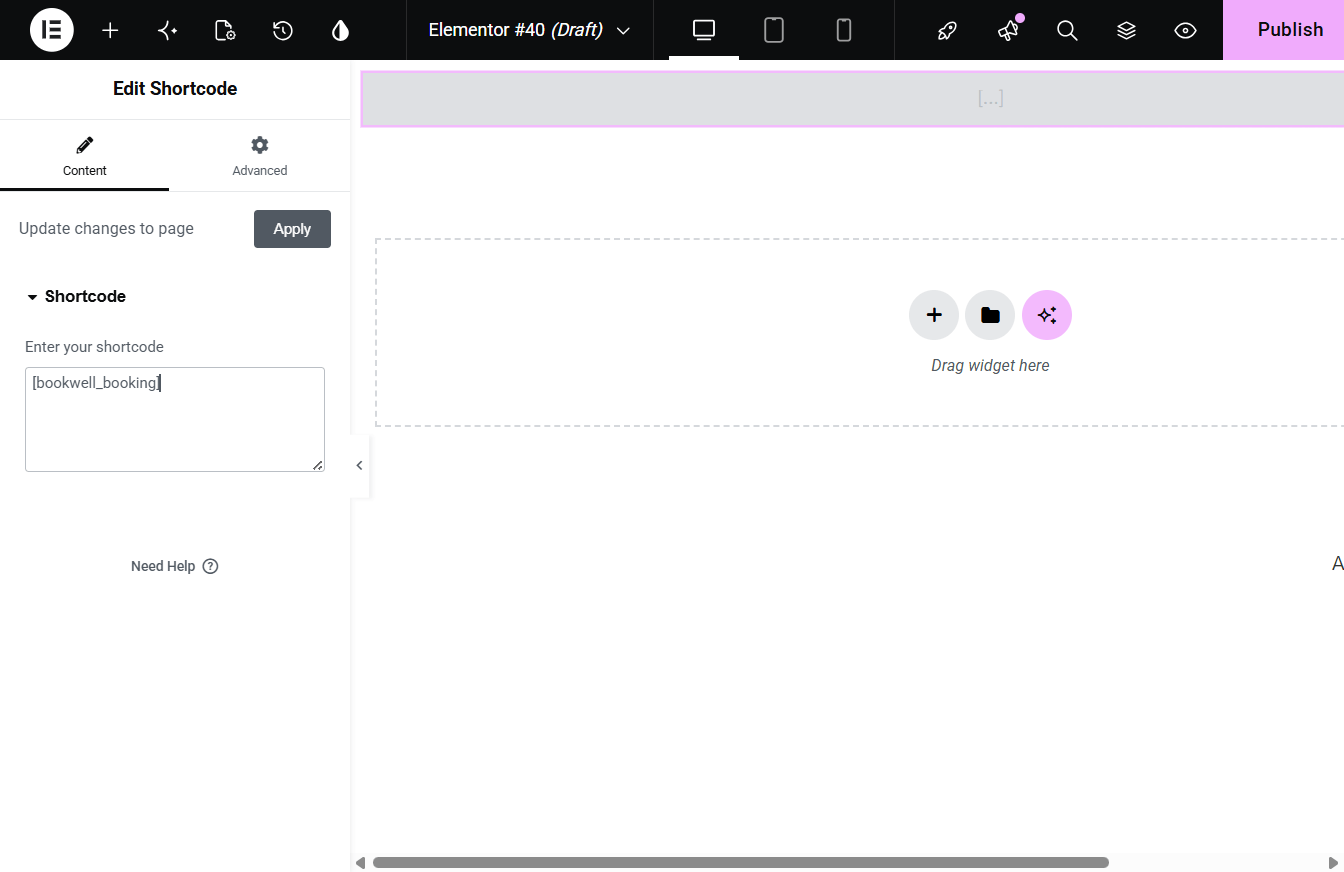
Step 4: Embed in Elementor Editor
If you build pages using Elementor, drag the standard Shortcode Widget onto your column block, paste your customized shortcode inside, and hit publish.
Booking buttons and panel shortcodes
The Free plugin also provides [bookwell_booking_button label="Book an appointment"] to open booking from a button. Use service_id or staff_id when you want to preselect a real service or staff member. The customer panel uses [bookwellnow_customer_panel]. Test these on a staging page with configured services and staff.
The Pro staff panel shortcode is [bookwellnow_staff_panel]; customer rescheduling uses [bookwellnow_appointment_reschedule] and must first be enabled in Pro settings. These panel shortcodes do not make their Pro capabilities available in Free.