Calendar View
The Calendar View is the scheduling command center for administrators and managers. It provides a visual, calendar-based representation of your business bookings, enabling you to track shifts, monitor staff workloads, and manage customer appointments in real time.
ℹ Quick Overview: The Calendar provides a comprehensive, color-coded monthly calendar grid that lets you drill down into individual appointment fields with a single click.
Step 1: Access the Calendar Screen
To view your booking timeline, log into your WordPress admin panel and navigate to:
BookWellNow → CalendarThis screen is designed to be lightweight and fast-loading, adapting smoothly to tablet and desktop viewports.
Step 2: Monthly Navigation & Grid Flow
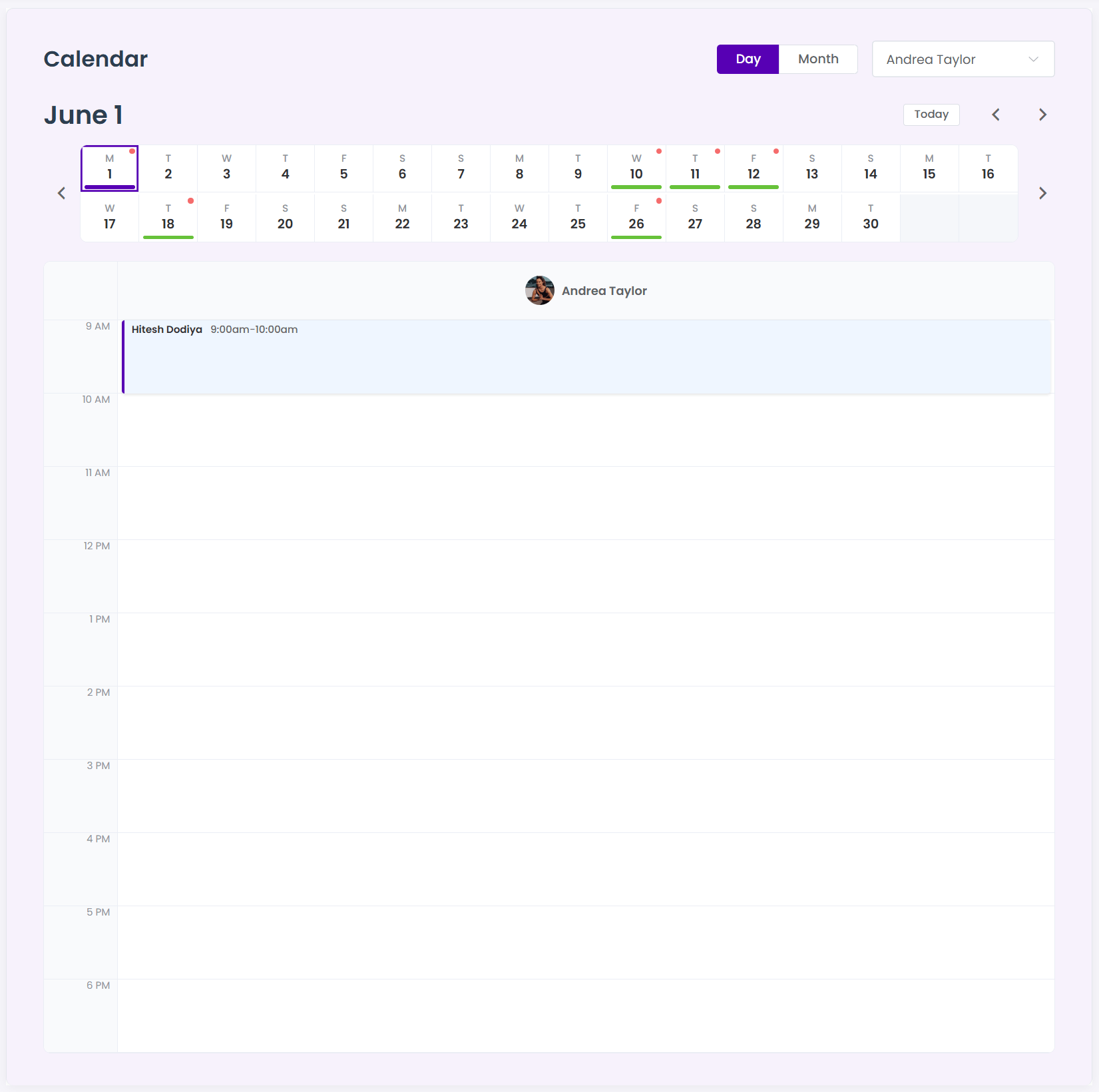
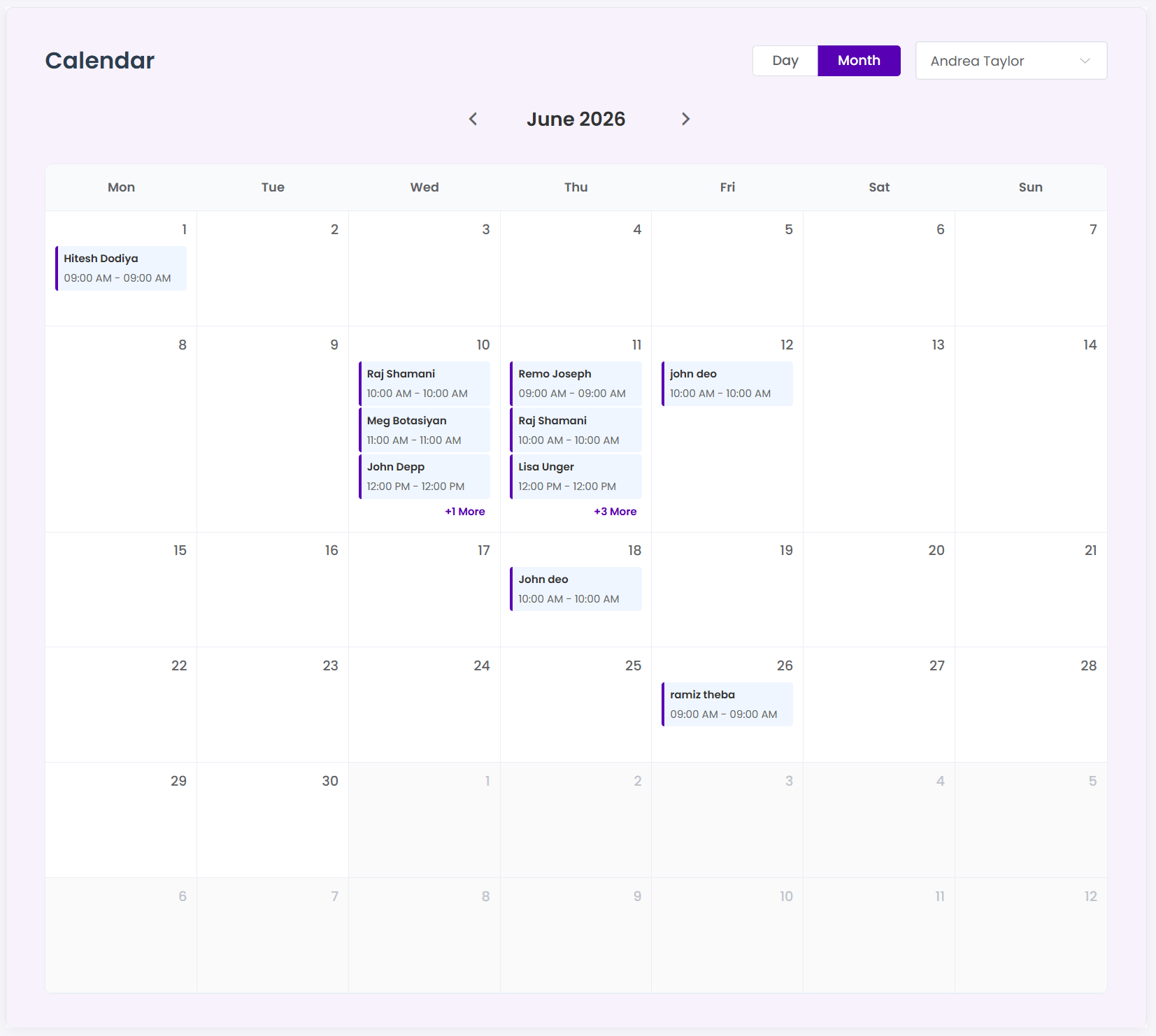
The default Monthly Calendar Grid displays all approved, pending, and scheduled appointments on their respective dates. Each calendar cell shows a compact summary containing the customer name, appointment time, and the booked service.
- Previous/Next Month: Use the navigation arrow icons at the top left of the grid to flip between months.
- Back to Today: Click the “Today” button to instantly snap back to the current active date.
Step 3: Filter Appointments by Staff
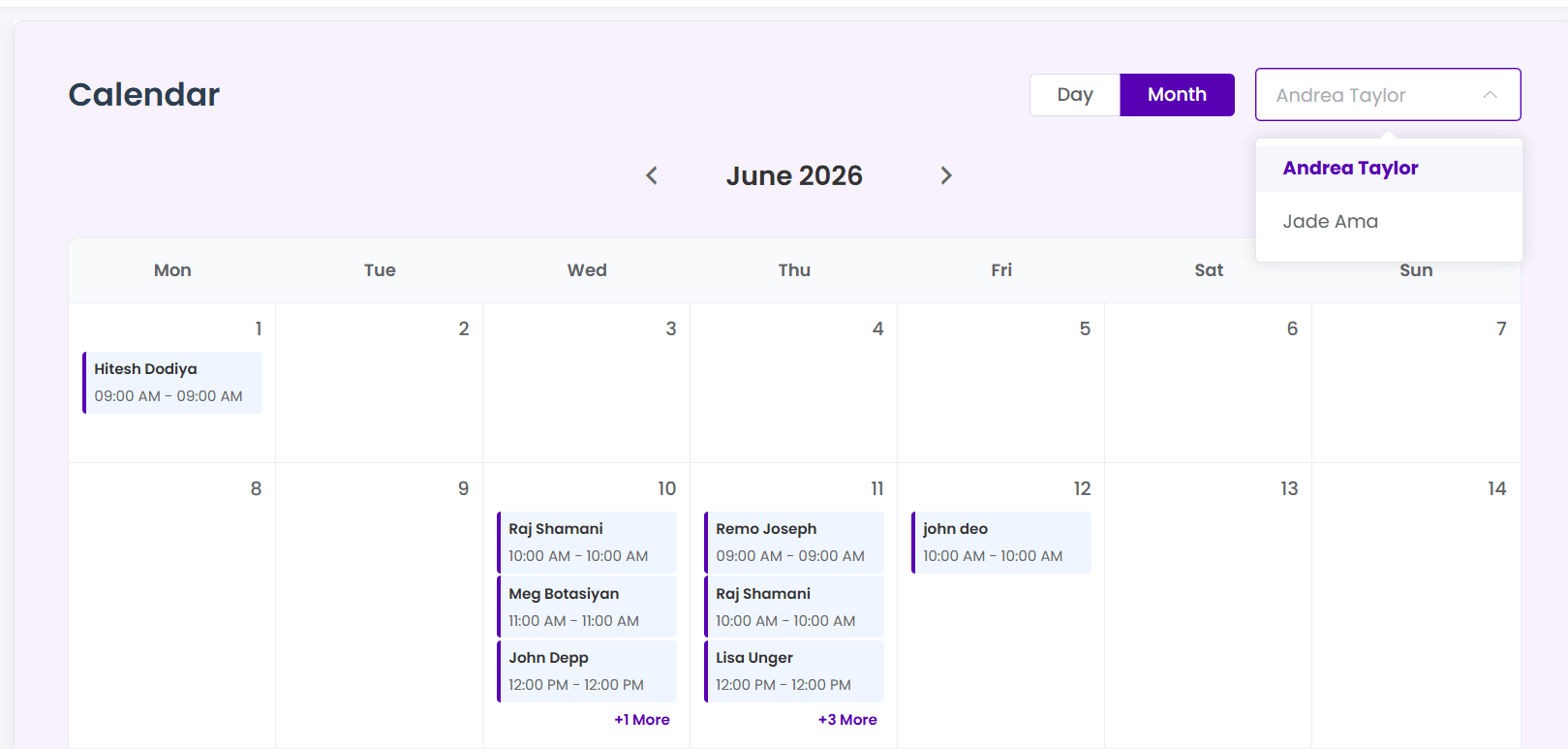
If you run a business with multiple employees, you can filter the calendar to display shifts for a single team member or view bookings across the entire company. Use the **Staff Filter dropdown** in the top-right corner to toggle views instantly.
Step 4: View Detailed Appointment Popups
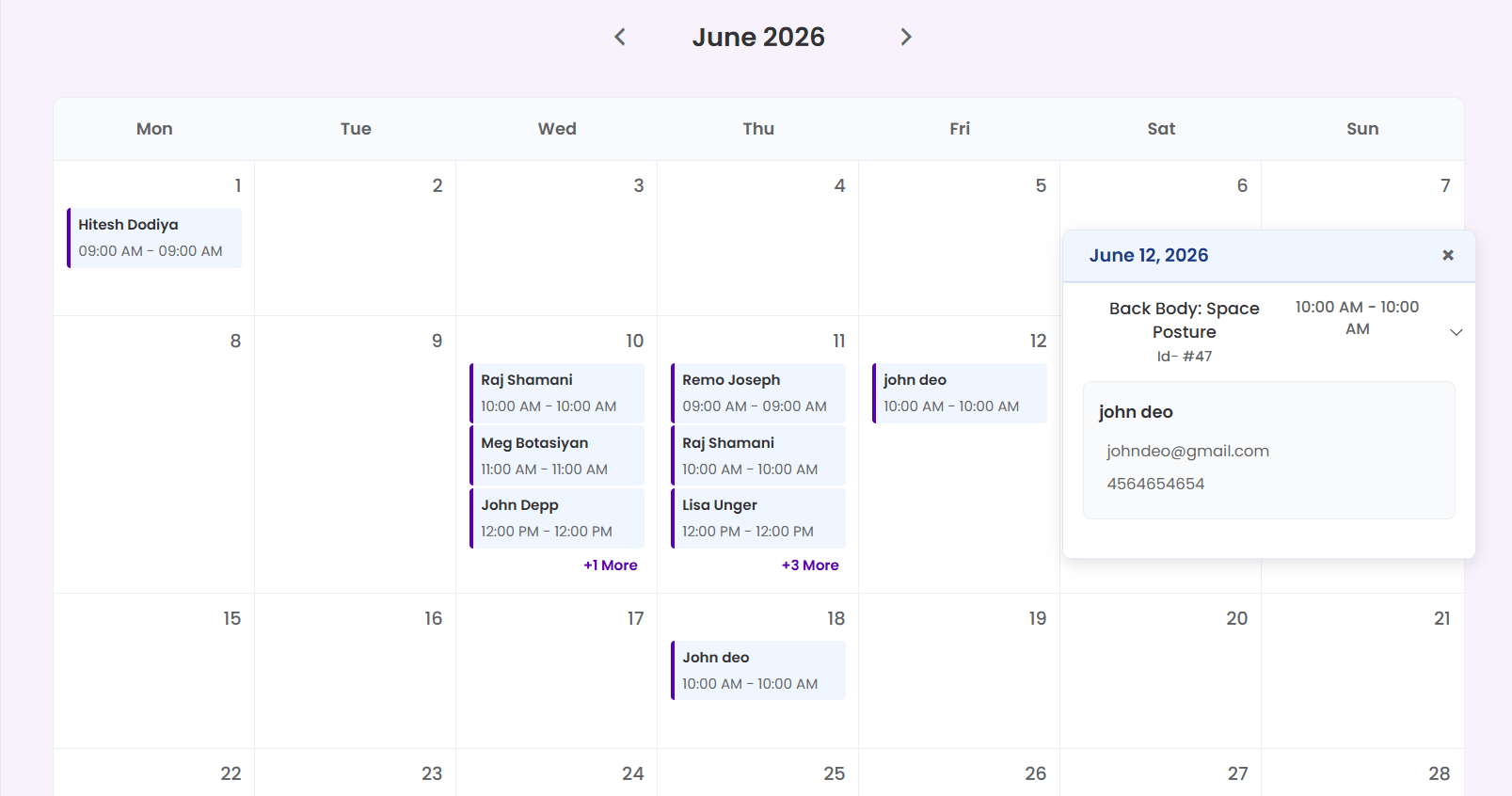
Click on any appointment block within the monthly grid to open the secure **Appointment Details Popup**. This popup compiles all booking logs dynamically from your database:
| Field Category | Information Displayed | Example Log |
|---|---|---|
| Appointment Info | Booking ID, Service Name, Duration, Price | #8402 | Premium Hair Cut (45 min) |
| Customer Data | Full Name, Primary Email, Contact Number | John Doe (john@example.com | +1 555-0199) |
| Staff Assignment | Assigned Employee, Scheduled Time Slot | Jane Smith | May 29, 2026 @ 2:30 PM |
| Booking Status | Transaction Status & Approval Stage | Approved | Paid via Stripe |