Mollie Payment Gateway Guide
Setup guide for BookWellNow Pro 2 0 9
Mollie lets customers pay for appointments through a hosted checkout page. Enable the Mollie add-on in BookWellNow Pro, enter the API key for your selected mode, and test a booking before accepting live payments. BookWellNow sends a webhook URL automatically so payment updates can reach your website.
Before you begin
Keep the free BookWellNow plugin and BookWellNow Pro active, with a valid Pro license. You also need a Mollie account and website profile, a priced service, and a working BookWellNow booking page. Check the currency in BookWellNow General settings and ensure Mollie supports it for your account and payment methods.
Use a publicly reachable website for end-to-end testing. Mollie cannot send webhook requests to a localhost address. Use an HTTPS staging site or a suitable public test URL when testing payment notifications.
Enable the Mollie add on
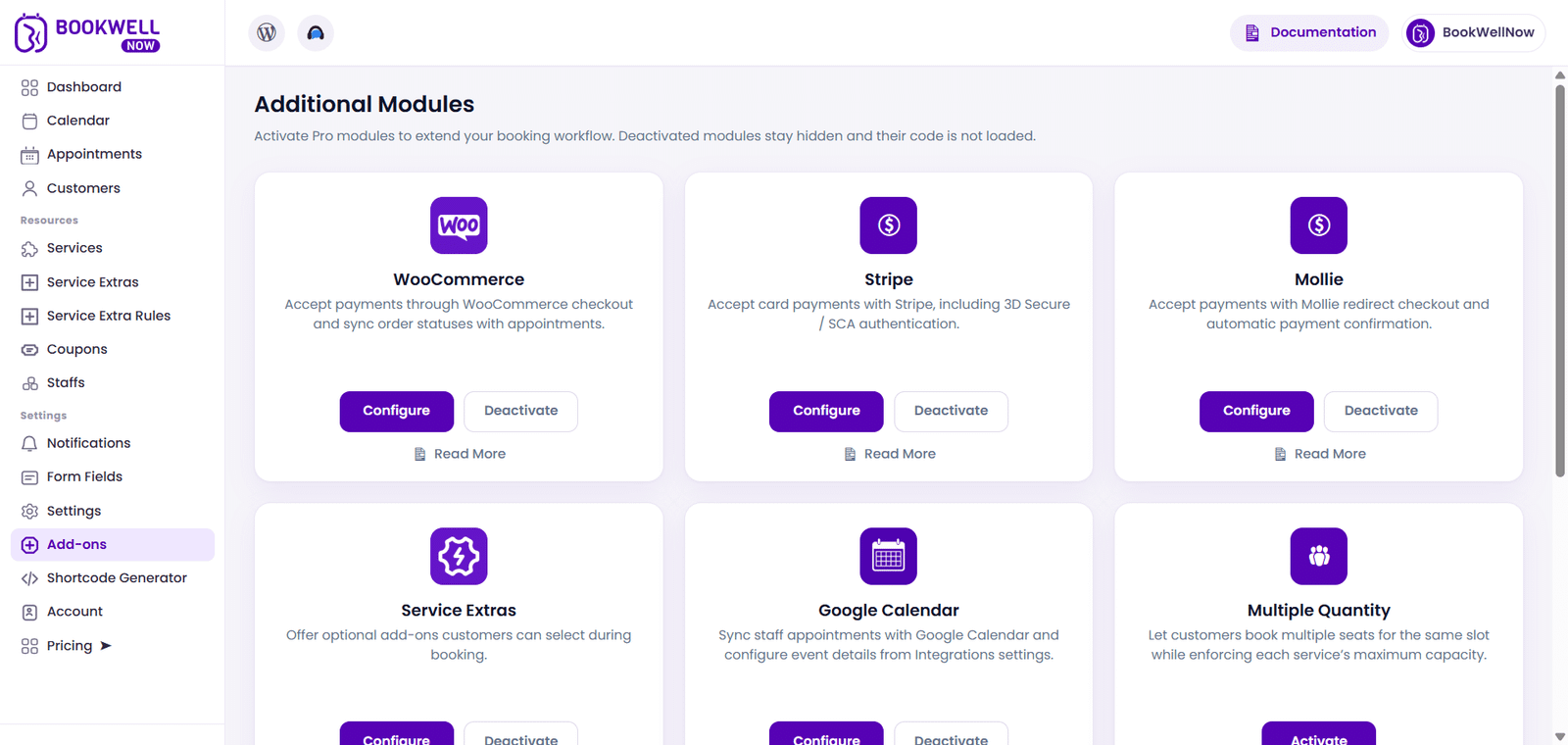
Open BookWellNow > Add-ons in WordPress and enable Mollie. Then open BookWellNow > Settings > Payment Gateways. Turn on the Mollie switch to display its configuration fields. Mollie is included as a Pro module; these steps do not require a separate BookingPress add-on download.
Get your Mollie API keys
Sign in to your Mollie account at https://my.mollie.com. Open the API keys for the website profile you want to use. BookWellNow provides an Open Mollie API keys link to https://my.mollie.com/dashboard/developers/api-keys. Copy the Test API key for testing and the Live API key for real payments.
Keep the keys private. Use the key for the selected mode: Test keys begin with test_ and Live keys begin with live_. Enter different valid keys for Test and Live.
Configure BookWellNow
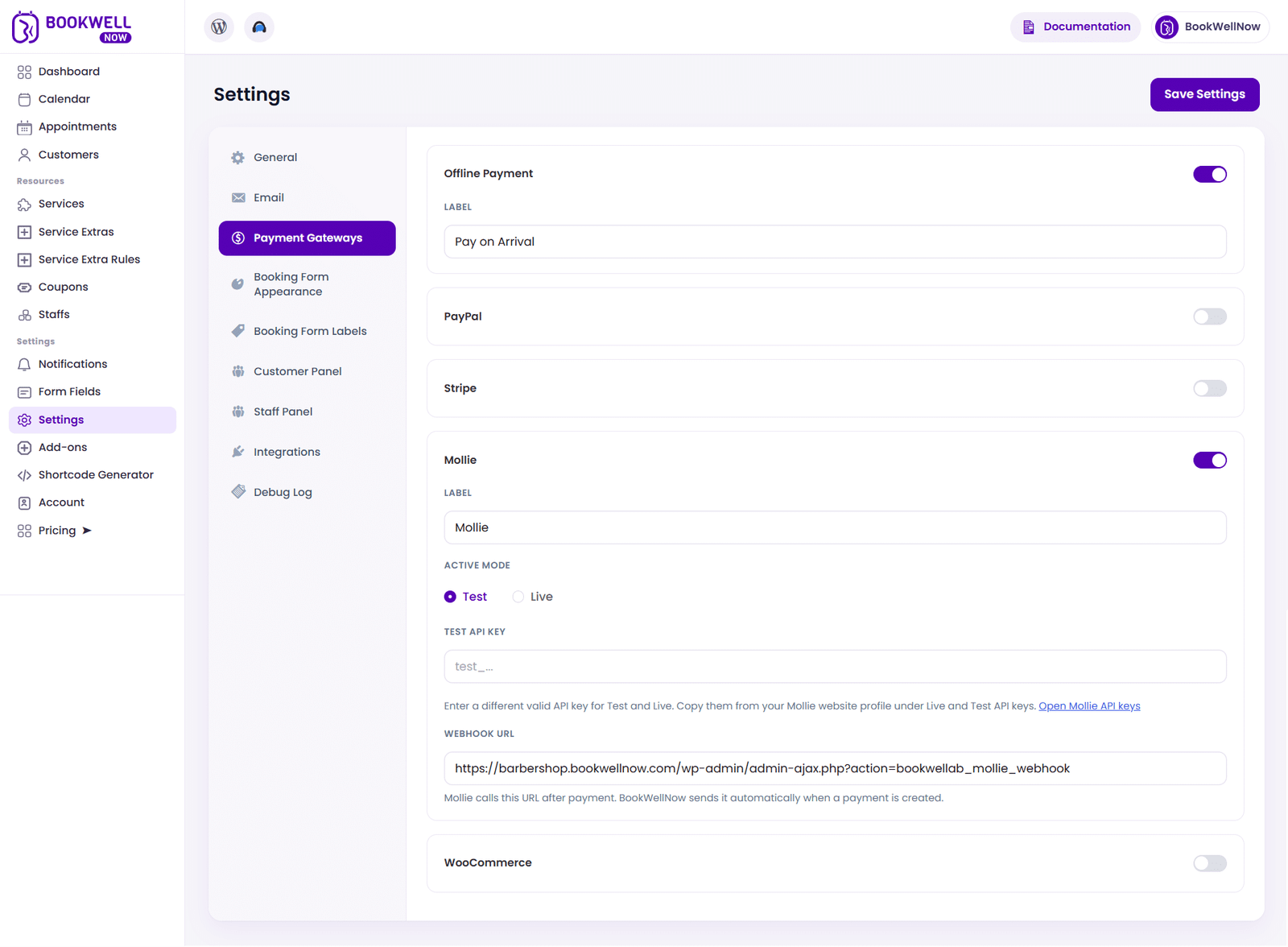
Label: Enter the payment method name customers should see, such as Mollie.
Active mode: Choose Test while checking the integration. Choose Live only when you are ready to accept real payments.
Test API key: In Test mode, paste the Test API key from your Mollie website profile.
Live API key: In Live mode, paste the Live API key from the same intended profile.
Webhook URL: This read-only field shows the notification URL. BookWellNow includes it automatically when it creates a Mollie payment.
Click Save Settings after entering your configuration. Only the API key field for the active mode is displayed, so switch modes when you need to enter or update the other key.
Test a customer payment
1. Select Test mode, enter your Test API key, and save the settings.
2. Open your public booking page and choose a service, staff member, date, and time. Enter the customer details.
3. Select Mollie at the payment step and continue. The customer is redirected to Mollie hosted checkout.
4. Complete a successful test payment and return to the booking page. Check the payment in Mollie and confirm the corresponding appointment payment status in BookWellNow.
5. Repeat the test with a cancelled or unsuccessful payment. Check that the booking is not marked as paid.
How confirmation works
BookWellNow creates a pending appointment while the customer completes checkout. It verifies payment information with the Mollie API when the customer returns and when Mollie sends a webhook. A paid payment is confirmed only after verification. Appointment status follows the configured default appointment status, so payment confirmation does not necessarily mean the appointment is approved.
If Mollie reports a cancelled, expired, or failed payment, BookWellNow cancels the pending appointment. A pending payment is not treated as paid. Keep the webhook endpoint accessible so updates can arrive even if the customer closes the browser before returning.
Start accepting live payments
After successful testing, open Settings > Payment Gateways > Mollie, select Live, paste the Live API key, and click Save Settings. Confirm that your Mollie account is ready for live payments. Verify a real booking and its payment status before making Mollie your main checkout method.
Troubleshooting
Mollie is missing from settings: Check that Pro and its license are active and that the Mollie add-on is enabled.
Mollie is missing from the booking form: Check the Mollie switch, active mode, saved API key, and the amount payable for the booking.
Checkout cannot start: Check the API key and selected mode, account configuration, booking currency, and outbound access from WordPress to api.mollie.com.
Payment remains pending: Check the payment status in Mollie and whether the webhook URL is publicly accessible. Review firewall or security rules that may block admin-ajax.php.
Testing on localhost: Move the test to a public staging site or public test URL. A browser return alone does not verify that server-to-server notifications work.
For diagnosis, enable Mollie logging under BookWellNow Settings > Debug Log if available. Contact support@bookwellnow.com with the error message and payment reference. Do not send API keys or customer payment credentials.