Customer Import Guide
Free WordPress plugin
Use this guide to add customers from a CSV file in BookWellNow. Prepare the file, map its columns to customer fields, and review the import results. Every imported customer must have a valid email address. Existing customers are not overwritten.
Prepare your CSV file
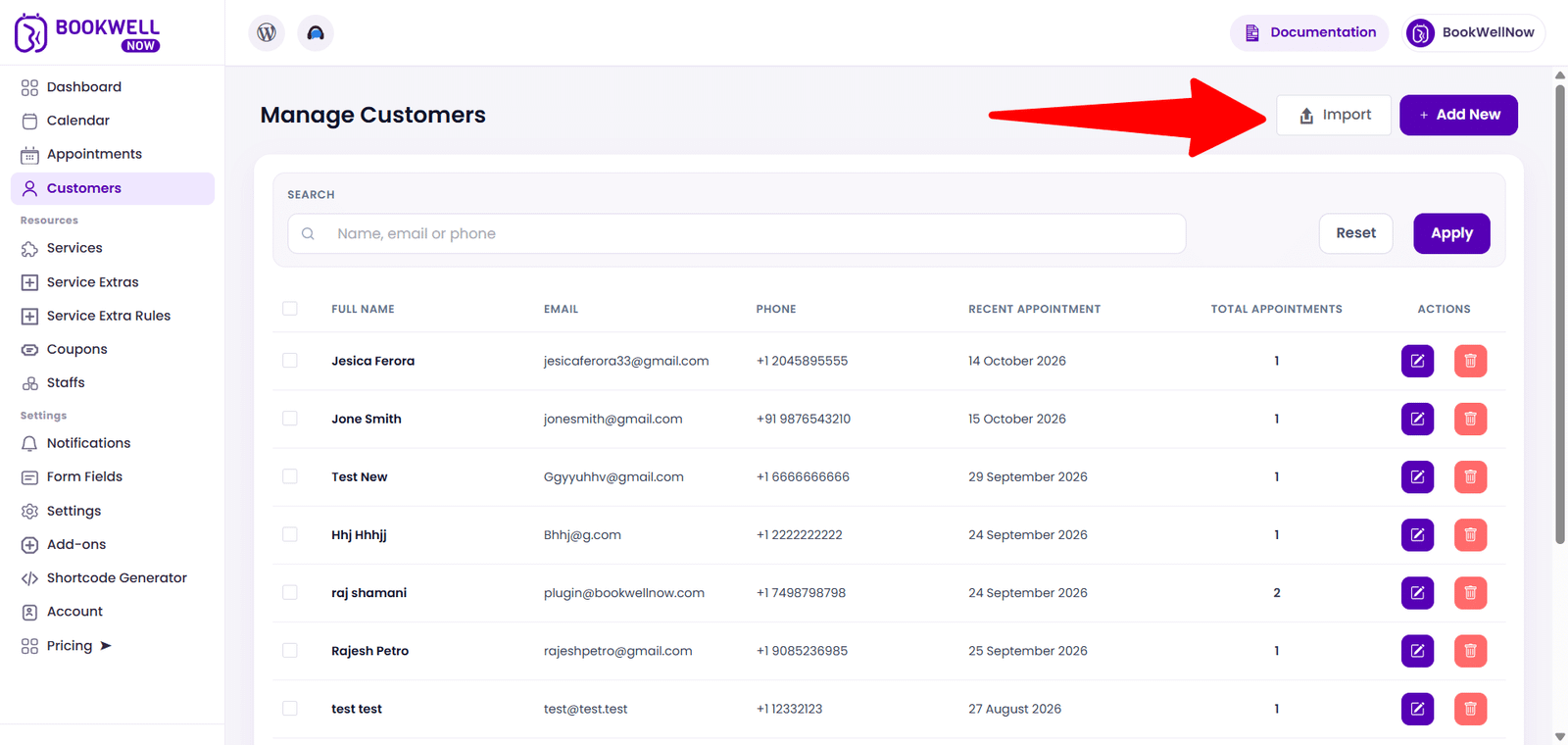
In WordPress, open BookWellNow > Customers, click Import, and select Download Sample CSV. Fill in your customer records and save the file as a comma-separated CSV, preferably using UTF-8 encoding. Keep one header row and one customer per row.
| Sample column | Required | What to enter |
| first_name | No | Customer first name |
| last_name | No | Customer last name |
| Yes | A valid email address unique to the customer | |
| phone | No | National phone number without the country dialing code |
The sample contains only these four columns. Phone country and dialing code use the default country configured in BookWellNow settings when no country information is provided. Check that default before importing phone numbers.
Example CSV
first_name,last_name,email,phone
Alex,Morgan,alex.morgan@example.com,2025550101
Jamie,Taylor,jamie.taylor@example.com,
The phone example assumes a US default country. Replace the example records with your own customers. Format phone cells as text in your spreadsheet to preserve leading zeros.
File limits
Upload a .csv file no larger than 2 MB, with no more than 1,000 customer rows. Split larger lists into separate files. Each row must have the same number of columns as the header; keep an empty value for optional fields.
Import and map customer fields
1. Sign in to WordPress with permission to manage BookWellNow customers. Open BookWellNow > Customers and click Import.
2. Click Choose File and select your CSV. The importer reads the header and displays Customer Field and CSV Column side by side.
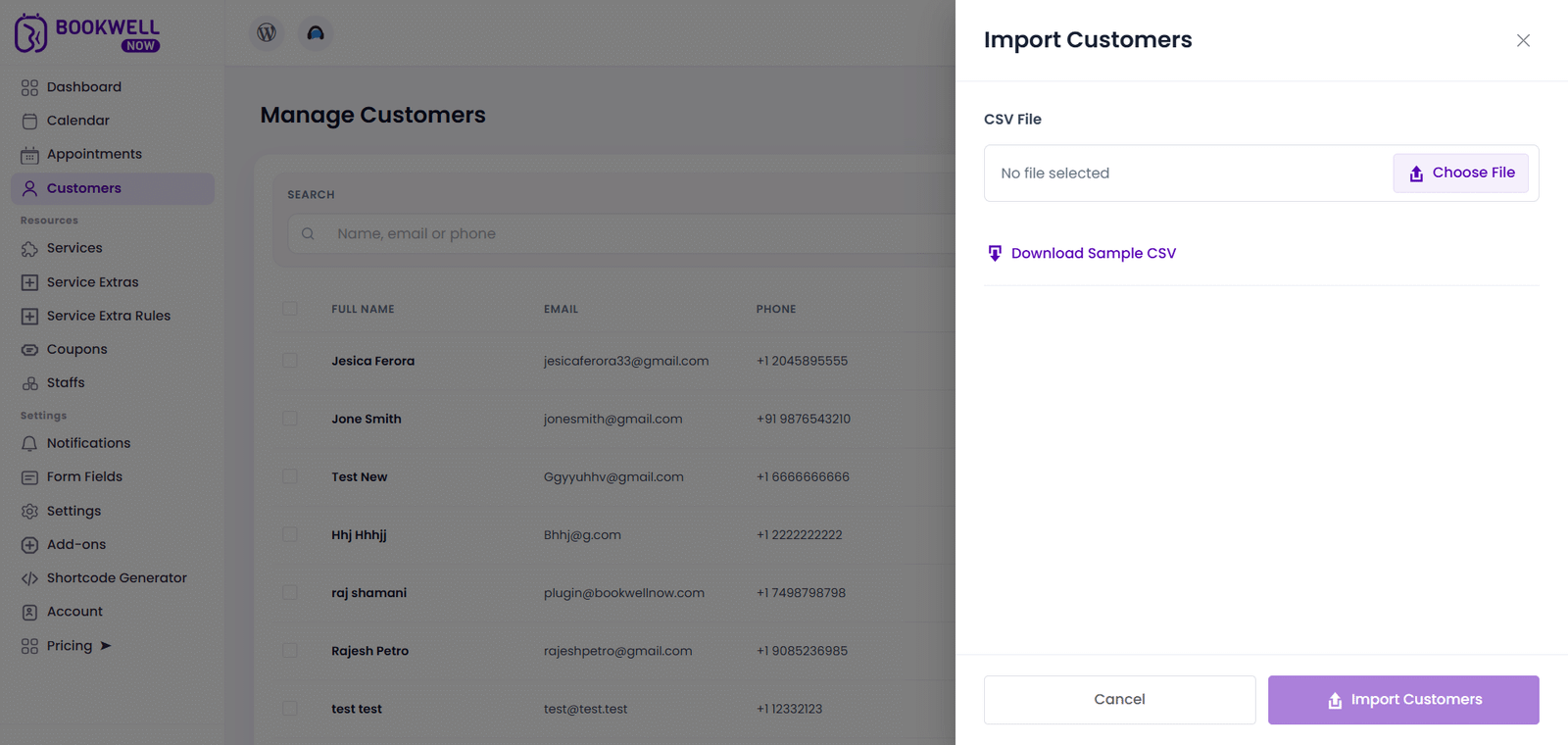
3. Select the CSV column for First Name, Last Name, Email, and Phone. Matching sample headers are selected automatically. You can also map files that use different header names.
4. Always map Email. Names and Phone are optional. Use a different CSV column for each customer field; leave unwanted columns unmapped.
5. Click Import Customers. Wait for the result before closing the drawer or importing another file.
6. Review the imported and skipped totals. For skipped rows, read the row number and reason, correct the source file, and import the corrected rows again.
Validation and skipped rows
Email is required in every row and must be valid, with a maximum of 254 characters. An email already present in the customer list is skipped, including duplicates encountered later in the same import. The existing customer is retained.
Names must be plain text and no longer than 255 bytes per field. Phone is optional. If provided, it may contain digits and standard punctuation such as spaces, parentheses, hyphens, and periods. National numbers must contain at least 7 digits, and the complete number including its dialing code must contain no more than 15 digits. US, Canadian, and Indian numbers require 10 national digits. Repeated-digit phone numbers are rejected.
Resolve common problems
Import button is unavailable: Choose a file, wait for its columns to load, and select the Email mapping.
Invalid or missing email: Enter a complete email address such as alex@example.com. Each customer row needs its own valid email.
Email already exists: Remove the duplicate row. Import does not update existing customer details; edit the customer in the customer list.
Phone number rejected: Check the default country and national number length. Do not include a separate country code in a national-number cell.
Column count mismatch: Check commas and quoting. Enclose values containing commas in double quotes, and retain empty optional cells.
Upload or security error: Check the CSV file size and extension. Reload the page if the security token has expired, then choose the file again.
Successful rows are saved even when other rows are skipped. Reimporting the same list will skip emails that were already imported. For help, contact support@bookwellnow.com with the row error message; avoid sharing private customer data unnecessarily.