Manage Staff
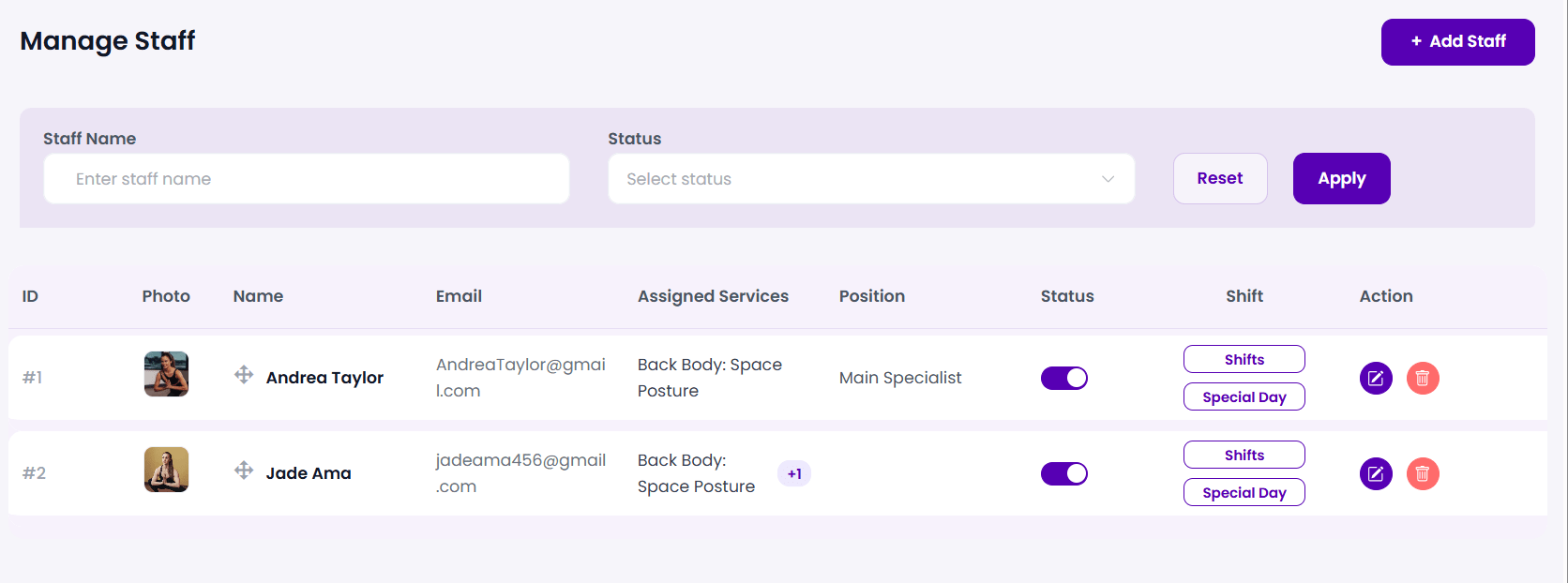
The Manage Staff screen acts as your primary administrative command center for your entire service team. It lets you monitor team rosters, toggle availability, adjust public sequences, and access calendar schedules.
Step 1: Access the Staff Directory
To view your business staff list, log into your WordPress admin panel and navigate to:
BookWellNow → StaffsThe dashboard presents a structured directory of all registered personnel alongside their active service links and shift shortcuts.
Step 2: Search and Filter Staff Members
For organizations with multiple specialists, finding profiles is fast. Use the search panel above the directory table:
- Staff Name: Input the specialist’s name (e.g. “Jone Deo”) to query the database.
- Status: Use the dropdown selector to filter by active or inactive states.
- Click Apply to filter records, or Reset to clear filters and view all staff.
Step 3: Inspect Staff Columns
The staff directory table provides a 360-degree overview of staff parameters:
| Table Column | Configuration Scope | Operational Value |
|---|---|---|
| ID | Auto-generated index | Database identifier for appointment logs. |
| Photo | Profile image avatar | Displayed directly to clients on the booking widget. |
| Name | Full Name with drag-handle | Click and drag the arrow handles to re-order the staff presentation sequence on the front-end! |
| Primary notification address | Used for scheduling updates and system notifications. | |
| Assigned Services | Linked catalog services | Lists all services this specific specialist is allowed to perform. |
| Position | Job position title | Clarifies staff expertise (e.g., “Main Specialist”) on the booking widget. |
| Status | Purple slide toggle | Instantly enables or disables the staff member’s public booking availability. |
| Shift | Schedule shortcuts | Offers quick actions to configure weekly **Shifts** or **Special Days**. |
| Action | Inline buttons | Click the edit icon (purple) to modify details, or the trash icon (red) to delete the record. |
💡 Quick Tip: Use the drag-and-drop handles next to the staff name to customize the ordering of your specialists. Placing your top performers at the top of the list will maximize their front-end bookings!
⚠ Status Warning: Deactivating a staff member’s status slide switch will instantly hide them from your public calendar booking widgets. However, their past scheduling records, earnings logs, and historical appointment histories remain completely untouched.