Manage Staff Shifts
Staff members require clear weekly working hours to prevent booking overlaps. BookWellNow includes a weekly shift editor where you can configure daily start and end times, toggles, and multiple breaks.
Step 1: Open the Shifts Editor
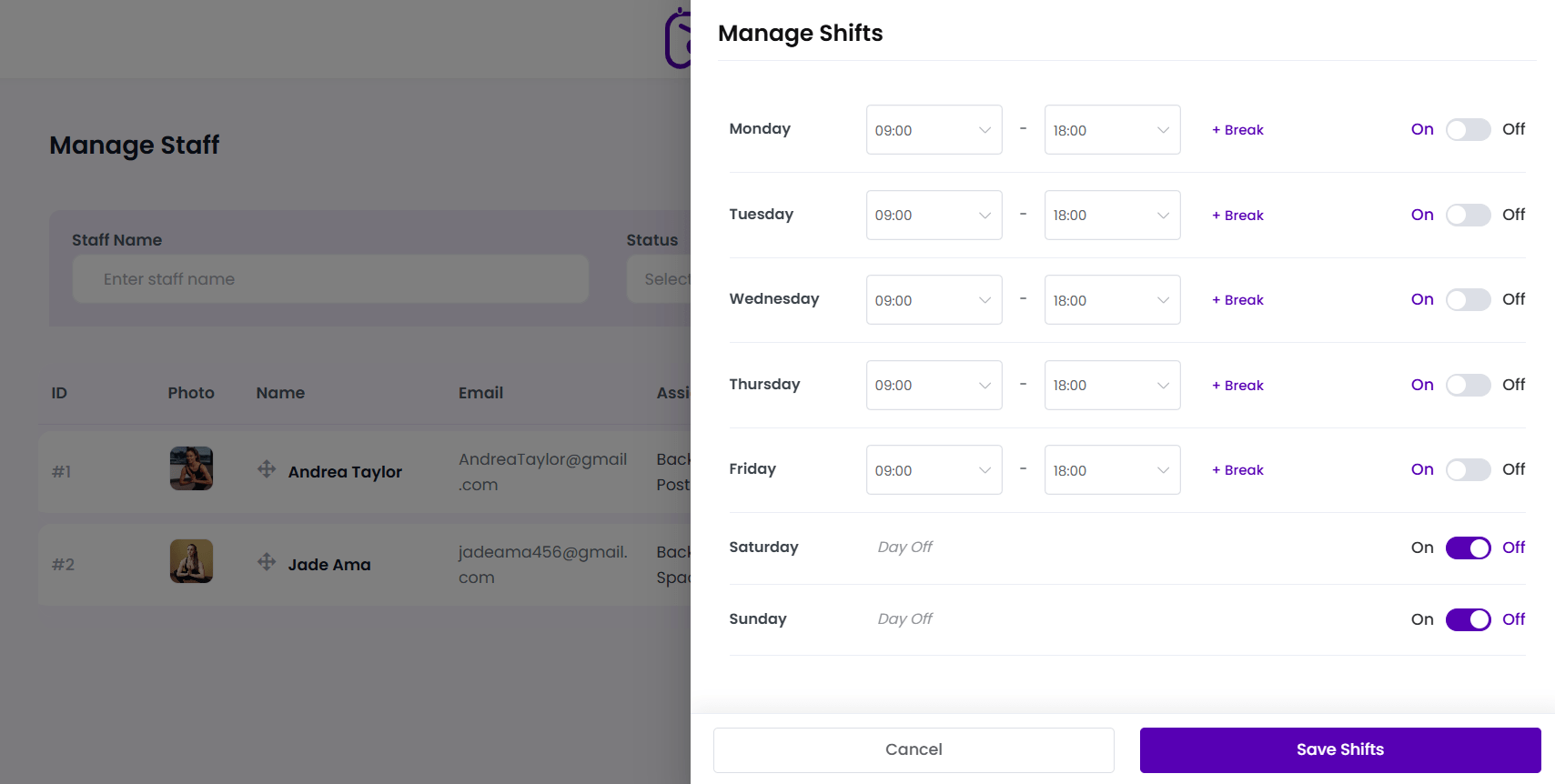
From the main staff list (BookWellNow → Staffs), locate the staff member and click the purple-outlined Shifts button in the “Shift” column. The weekly shifts sidebar drawer will slide open.
Step 2: Set Working Days (On/Off)
Toggle the status slide switch on the right side of each weekday row:
- On (Purple): The staff member is working and available for bookings on this day.
- Off (Gray/Right): The day is configured as a regular Day Off (e.g., Saturday and Sunday). Bookings are blocked.
Step 3: Configure Daily Shifts
For each active working day, set the working hours:
- Select the starting hour from the Shift Start Time dropdown (e.g.,
09:00). - Select the closing hour from the Shift End Time dropdown (e.g.,
18:00).
Step 4: Add Breaks
Add breaks (e.g., lunch breaks or rests) to prevent clients from booking slots during these hours:
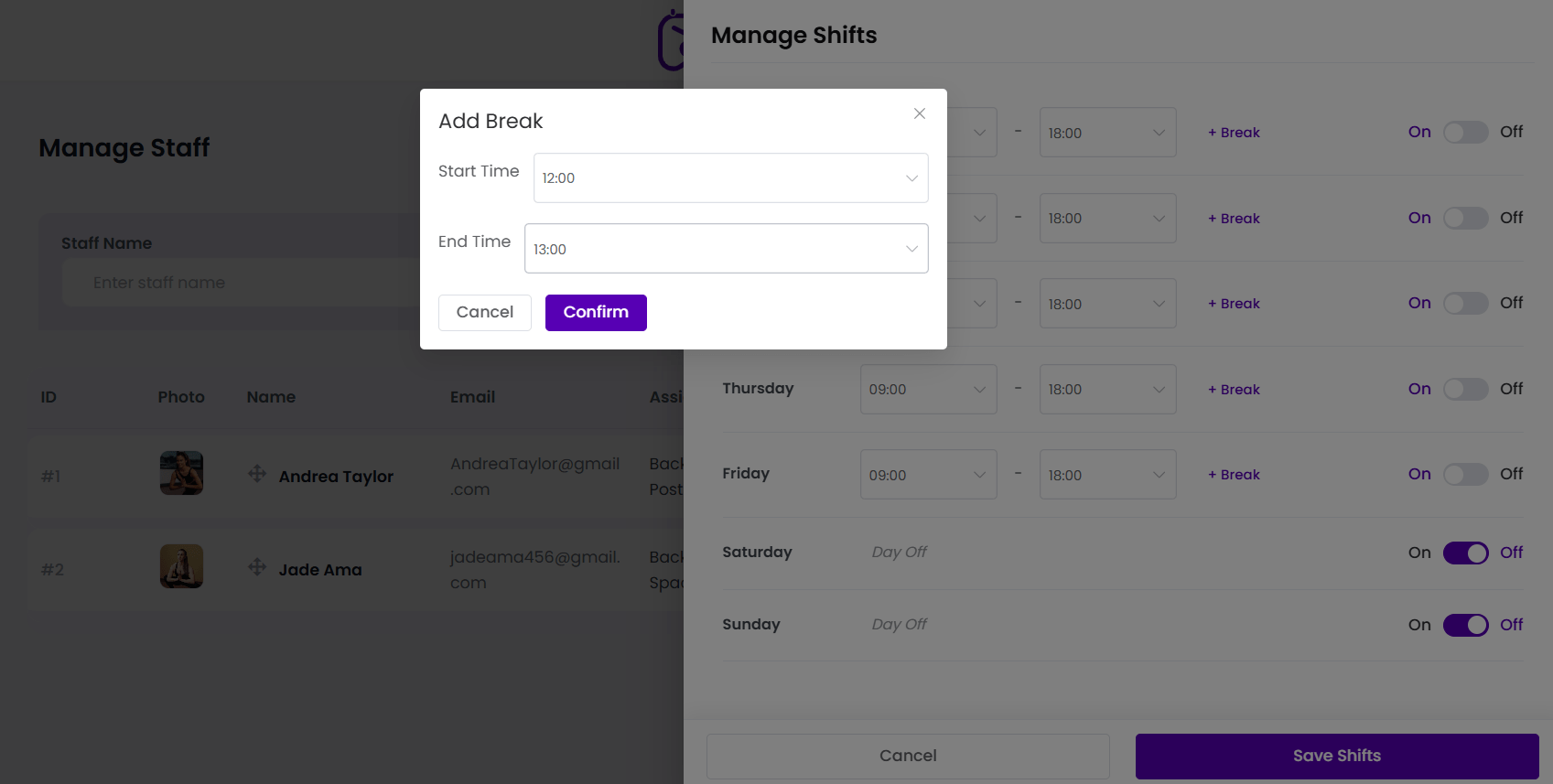
- Click the purple + Break button in the active day’s row.
- Select the break start and end times using the dropdown selectors (e.g.,
12:00: 13:00). - You can add multiple breaks per day to accommodate split-shifts.
- To remove a break, simply click the small red close (x) button next to the break badge.
Step 5: Save Weekly Shifts
Click the primary purple Save Shifts button at the bottom of the drawer to record the schedule exception. Click Cancel to revert changes.
💡 Breaks Tip: Set up a standard 1-hour break (e.g., 12:00 to 13:00) on all working days to ensure staff members have a guaranteed lunch break. The front-end calendar widget will automatically remove this hour from public booking slots!
Overnight shifts
Free supports shifts whose end time continues into the next day. In the staff shift editor, choose the appropriate end time marked Next Day. The end must be later than the start and the total shift must remain within 24 hours. Keep breaks within the shift.
For example, a shift from 22:00 to 02:00 Next Day continues through midnight. Test availability on both dates using a service assigned to that staff member. Check the WordPress time zone, special days and breaks if expected slots are missing.