Manage Special Days
Staff members occasionally require schedule overrides for leaves, sick days, national holidays, or extended shifts. The Special Days system lets you configure temporary overrides for specific dates without changing their regular weekly shifts.
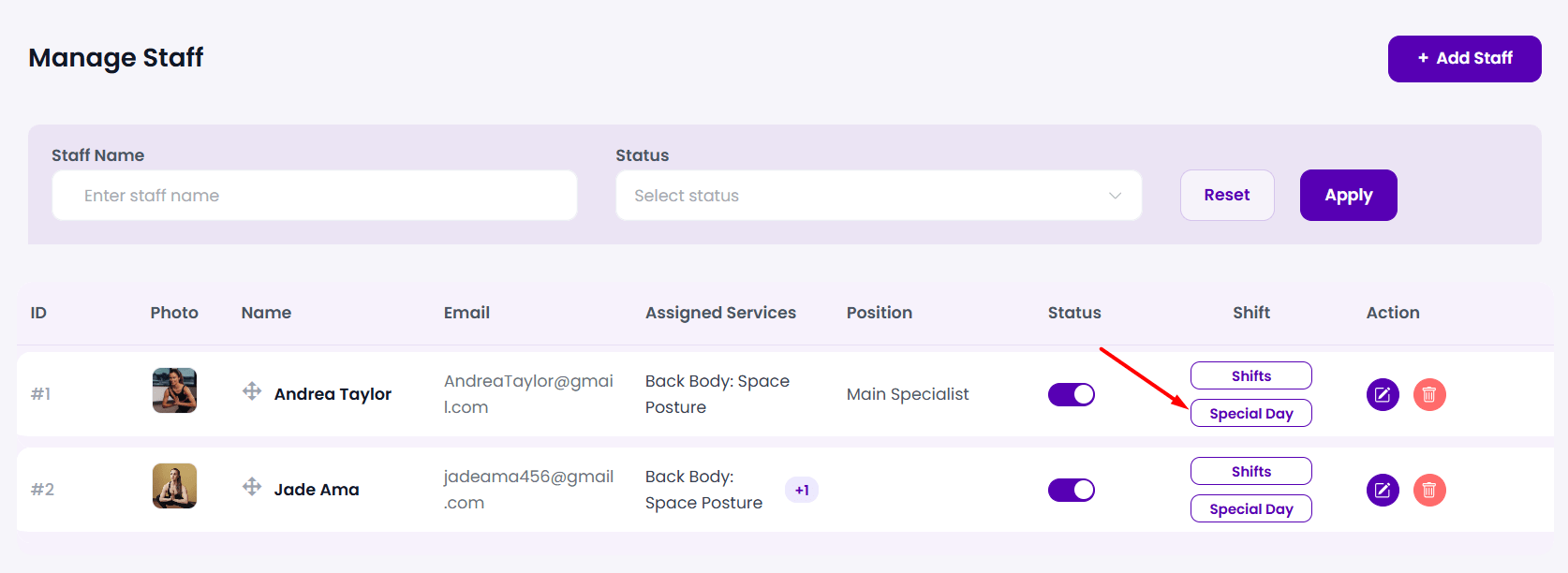
Step 1: Open the Special Days Drawer
From the staff directory page (BookWellNow → Staffs), locate the team member and click the purple-outlined Special Day button. This opens the Manage Special Days drawer listing all active exceptions.
Step 2: Create a Special Day Override
Click the purple + Add Special Day button in the top-right corner to open the creation drawer.
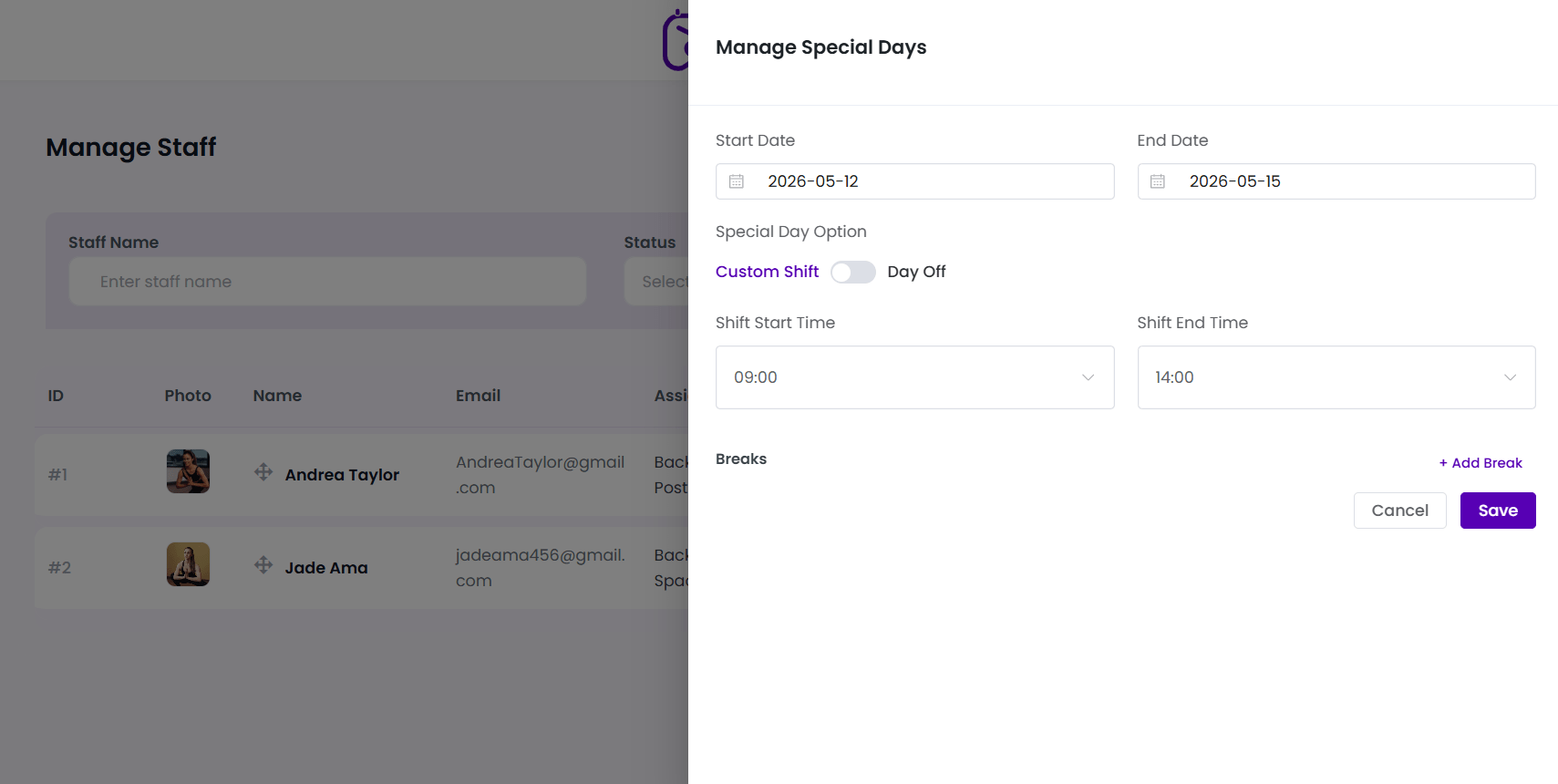
Step 3: Configure Date Ranges
Set the active range for this schedule override:
- Start Date: Select the start date of the leave or custom shift using the interactive datepicker.
- End Date: Select the end date. For single-day overrides, set both fields to the same date.
Step 4: Select Special Day Options
Use the Special Day Option slide toggle to select the type of exception:
- Day Off: Instantly blocks the staff member’s schedule for the selected dates. Perfect for leaves, holidays, or sick days.
- Custom Shift: Overrides their default hours with a custom shift on the selected dates.
- Configure custom Shift Start Time (e.g.
11:00) and **Shift End Time** (e.g.16:00). - Add specific temporary Breaks (e.g.
12:00: 13:00) if needed.
- Configure custom Shift Start Time (e.g.
Step 5: Save the Special Day
Click the purple Save button to record the exception. The override takes effect immediately on the front-end calendar widget!
⚠ Holiday Warning: Remember to configure national holidays (like Christmas or New Year’s Day) as Special “Days Off” for your entire staff. This protects your business from accidental bookings when your office is closed!